
Chapter 2: Passwords, MFA, Phishing, and Account Protection
Learn how to protect online accounts, recognise social-engineering attempts, and respond safely to suspicious sign-in activity. These skills apply to college portals, email, social platforms, cloud consoles, developer tools, and business applications.
Lab environment: Use fictional messages and example URLs only. You may inspect the security settings of your own account, but do not enter real passwords or one-time codes into classroom exercises. Never send phishing messages to other people or test accounts you do not own or have explicit permission to use.
Learning objectives
By the end of this chapter, you should be able to:
- Explain why passwords are attacked and how weak or reused passwords increase risk.
- Create a strong, unique passphrase and explain the role of a password manager.
- Describe multi-factor authentication (MFA), common factor types, and its limitations.
- Identify common phishing and social-engineering warning signs.
- Inspect a URL carefully and explain why HTTPS alone does not prove a site is trustworthy.
- Choose safe actions when a message or sign-in request looks suspicious.
- Review basic account recovery, active sessions, and security notifications.
- Complete a short phishing-analysis exercise using synthetic examples.
1. Industry scenario: a student account is taken over
Imagine a fictional campus portal used to view timetables, examination results, fee information, and personal details. A student reuses the same password on several websites. One unrelated service suffers a data breach, and the exposed password is tried against the campus portal. The attacker then accesses the account and views private information.
A second student receives a message claiming that their college account will be disabled unless they sign in immediately. The message links to a lookalike page and asks for a password and one-time code. This is a social-engineering attempt: it tries to persuade the user to reveal credentials rather than exploit a technical bug.
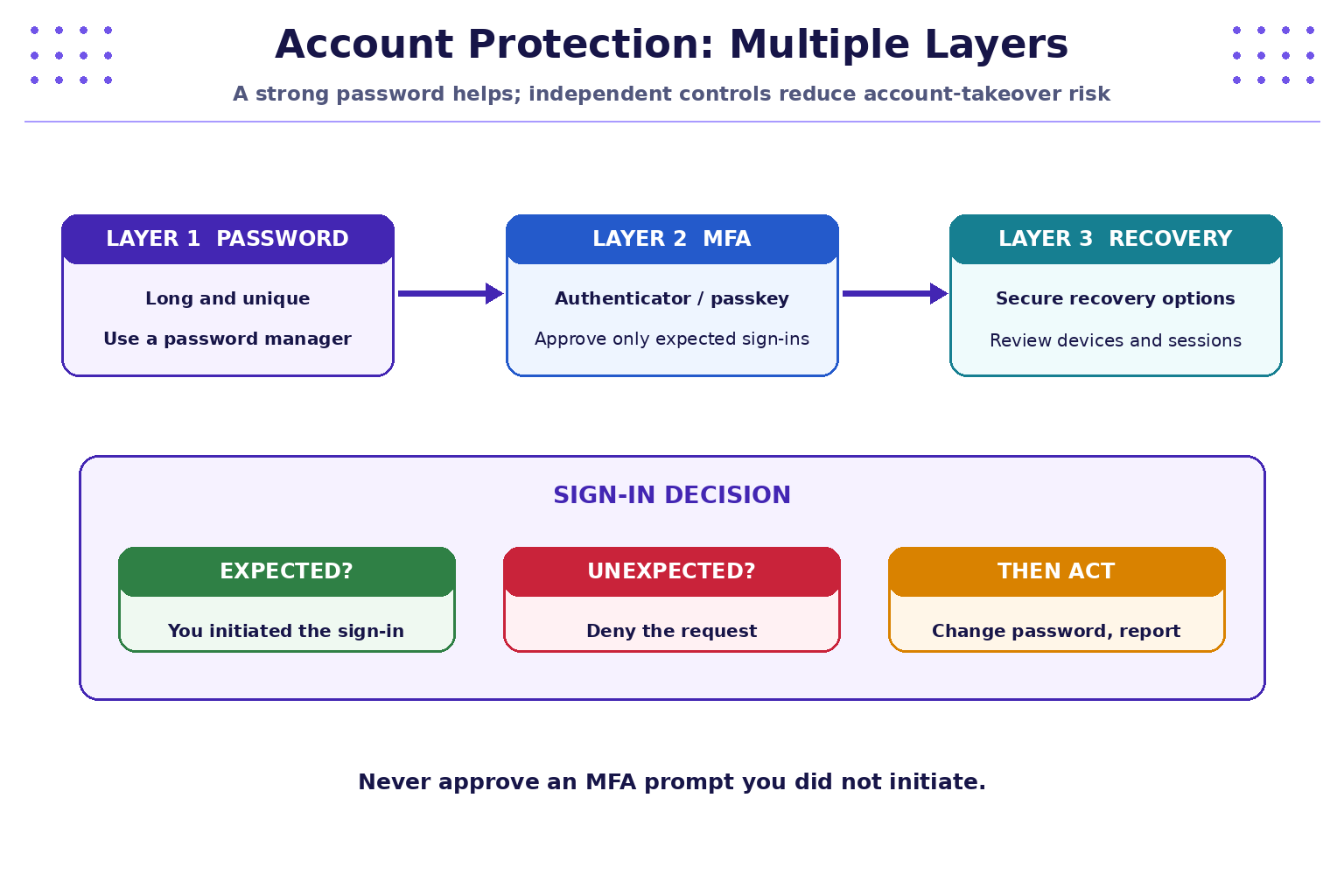
Account protection works best as several layers: a unique password, a suitable second factor or passkey, secure recovery options, sign-in alerts, and a habit of checking unexpected requests before acting. No single control removes every risk.
2. Password fundamentals
A password is a secret used to help prove that a person is authorised to access an account. Attackers may obtain passwords through phishing, data breaches, guessing, malware, or password reuse. The aim is to make credentials difficult to guess and limit the damage if one service is compromised.
2.1 Length, uniqueness, and unpredictability
- Length: longer passwords or passphrases generally provide more possible combinations, particularly when they are not predictable.
- Uniqueness: use a different password for every important account. Reuse allows a leaked password from one site to put other accounts at risk.
- Unpredictability: avoid names, birthdays, college names, common phrases, keyboard patterns, and predictable substitutions.
- No routine reuse: when a password is exposed or suspected compromised, change it promptly. Follow the service's current security guidance rather than changing passwords on an arbitrary schedule without a reason.
A passphrase can be easier to remember than a short complex string. For example, a made-up sequence of several unrelated words is a better teaching illustration than a personal detail or a famous quote. Do not use examples from this tutorial as your actual password.
2.2 Password manager
A reputable password manager can generate and store a different strong password for each service. The user then protects the manager with a strong master credential and available MFA or passkey protections.
Good practice includes:
- Obtain the manager from its official source.
- Protect its primary account with a strong, unique credential and MFA where available.
- Understand account recovery before relying on it.
- Never paste a real password into a shared document, classroom chat, screenshot, or online password checker.
- Do not assume a password manager makes phishing impossible: a user can still be tricked into approving a login or entering credentials on a fraudulent page.
3. Multi-factor authentication (MFA)
MFA asks for two or more different types of proof. It reduces reliance on a password alone. A factor is not simply a second question; the factors should represent different categories.
| Factor type | Example | Important consideration |
|---|---|---|
| Something you know | Password or PIN | Can be guessed, stolen, or observed |
| Something you have | Security key, authenticator app, registered device | Protect the device and its recovery process |
| Something you are | Fingerprint or face recognition | Usually depends on a supported device and implementation |
3.1 Common MFA approaches
- Authenticator app: generates time-based codes or supports an approval flow. Protect the device and recovery method.
- Push approval: sends a sign-in request to a registered device. Approve only when you initiated the sign-in and recognise the context.
- SMS code: can be better than a password alone, but may be exposed through phone-number takeover or message interception; prefer stronger supported methods when practical.
- Security key or passkey: can provide strong phishing resistance when correctly implemented because authentication is bound to the legitimate site or service.
- Backup codes: recovery codes should be stored securely and treated as secrets.
MFA is not a reason to approve every prompt. Repeated unexpected prompts may indicate that someone knows the password and is trying to pressure the account owner into approving access. Deny unexpected requests and follow the service's account-security guidance.
4. Phishing and social engineering
Phishing is a deceptive message intended to make someone reveal information, open a harmful attachment, visit a fraudulent website, or perform an unsafe action. It may arrive by email, SMS, messaging app, phone call, social media, or a fake sign-in prompt.
Common forms include:
- Bulk phishing: a generic message sent to many people.
- Spear phishing: a message tailored to a particular person or role.
- Smishing: phishing through SMS or messaging services.
- Vishing: voice-call social engineering.
- Credential phishing: a fake login page designed to capture credentials.
- MFA fatigue or prompt bombing: repeated authentication requests intended to make a user approve one accidentally or out of frustration.
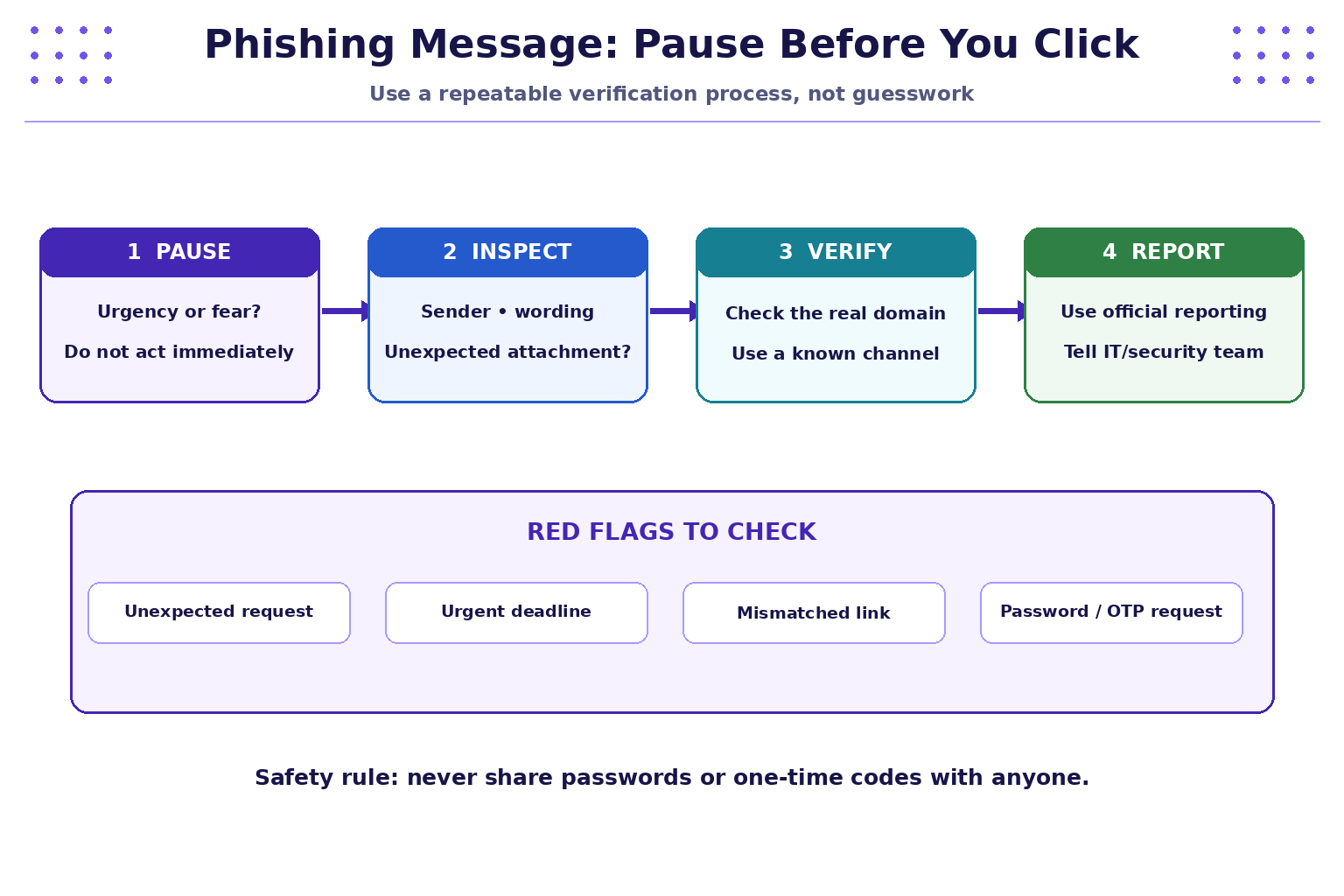
4.1 Warning signs to assess
Look for combinations of signals rather than relying on one clue:
- Unexpected urgency, threats, or a short deadline.
- Requests for passwords, one-time codes, recovery codes, or payment.
- A sender address or domain that does not match the organisation's known address.
- A link whose actual destination differs from the displayed text.
- Unexpected attachments, unusual file types, or requests to enable macros.
- Unusual tone, unexpected context, or a request that bypasses normal procedures.
- A request to keep the activity secret or avoid contacting the usual support team.
Professional-looking language, a familiar logo, or the presence of HTTPS does not prove that a message or website is genuine. Attackers can copy branding and obtain HTTPS certificates for deceptive domains.
5. Inspect URLs safely
A URL contains several parts. For example:
https://portal.example.edu:443/student/login?term=autumn#help
httpsis the scheme or protocol.portal.example.eduis the hostname.443is an explicit port; the default HTTPS port is normally 443./student/loginis the path.?term=autumnis the query string.#helpis a fragment interpreted by the browser.
When assessing a link, identify the hostname from right to left within the domain labels. In portal.example.edu.attacker.invalid, the registered-looking portion may be misleading; the actual hostname ends in attacker.invalid, not example.edu. Do not decide from the first familiar word in a URL.
Compare these examples as text only:
Expected example: https://portal.example.edu/
Suspicious example: https://portal.example.edu.attacker.invalid/
Suspicious example: https://example.edu.login-security.invalid/
The .invalid suffix is reserved for examples and is used here to avoid directing students to a real login page. Do not open suspicious links to investigate them. If needed, use an approved security tool or ask the institution's IT team.
Safe link-checking habits
- Do not click an unexpected link just to find out where it goes.
- If you need the service, type its known address yourself or use a trusted bookmark.
- Check the full hostname, not just the logo or words in the path.
- Be wary of URL shorteners and unexpected redirects.
- Do not enter credentials after following a suspicious message.
- Report the message through the organisation's approved process.
6. Example: analyse a suspicious campus message
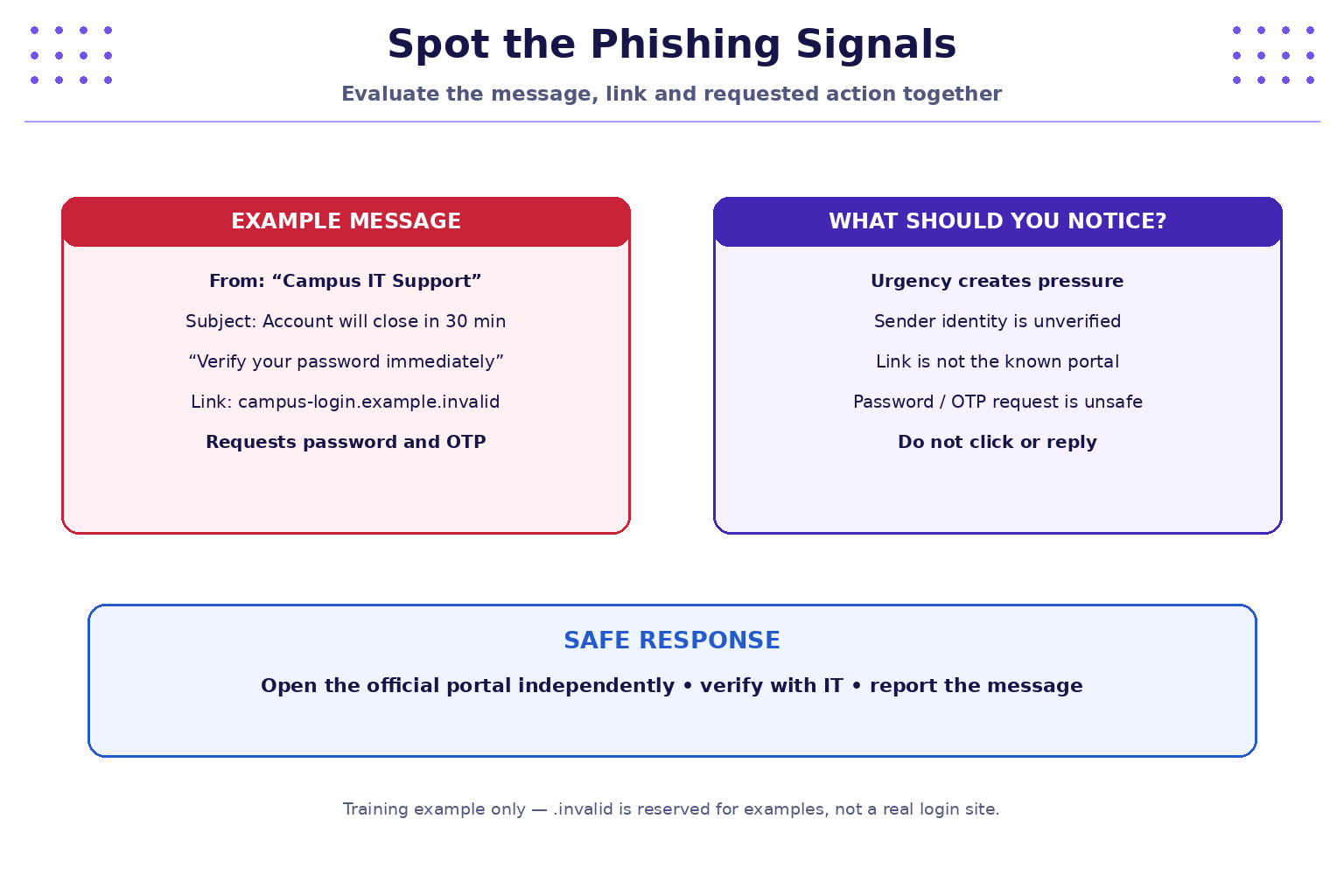
Consider this fictional message:
From: “Campus IT Support”
Subject: Account will close in 30 minutes
Message: Verify your password immediately to keep access.
Link: https://campus-login.example.invalid/
Request: Enter your password and one-time code.
What are the warning signs?
- Urgency: the deadline pressures the recipient to act before checking.
- Unverified sender: the display name is not proof of the sender's identity.
- Untrusted destination: the example hostname is not an official college domain.
- Credential request: the message asks for a password and one-time code.
- Unexpected process: the user is pushed to follow a message link instead of using the normal portal.
What should the recipient do?
- Do not click the link, reply with information, or enter credentials.
- Open the college portal using a known bookmark or independently typed official address.
- Contact IT through a known phone number or support channel if the request might be genuine.
- Report the message using the institution's approved reporting procedure.
- If credentials were already entered, use a trusted device and official site to change the password, review sessions, and contact IT immediately. Revoke suspicious sessions where the service permits it and secure recovery options.
7. Review account security settings
For an account you own, a safe review can help you understand the protections available. For example, Google account holders can visit the official security page by typing myaccount.google.com/security into the browser or using a trusted bookmark.
Review these areas without sharing personal information in class:
- MFA or passkeys: check whether a second factor is configured and whether the method is appropriate for the account.
- Recovery options: confirm that recovery email addresses and phone numbers are current and controlled by you.
- Devices and sessions: review signed-in devices and sign out unfamiliar sessions using the service's official controls.
- Recent security activity: check alerts for sign-ins or changes you do not recognise.
- Connected apps: review third-party applications and remove access you no longer need.
- Password exposure alerts: follow official guidance if the service reports a compromised credential.
Do not change account settings during a live demonstration unless you understand the consequences and have a recovery path. Use screenshots with private details hidden if demonstrating in class. Menu names may change over time and differ between providers.
8. Practical lab: phishing triage with synthetic examples
Objective: classify a small set of messages and recommend safe responses without opening links or using real credentials.
Step 1 — Create a simple review table
Copy this table into your notes and fill in the last two columns.
| Message | Signals to examine | Classification | Safe response |
|---|---|---|---|
| A. “Your account closes in 20 minutes; enter password and OTP.” | Urgency, credential request, link destination | Your assessment | Your action |
| B. “You requested a password reset. If this was not you, visit the service through your saved bookmark.” | Was the reset expected? Is the sender genuine? | Your assessment | Your action |
| C. “A lecturer shared a document you were expecting through the college's normal collaboration system.” | Expected context, verified sender, genuine destination | Your assessment | Your action |
| D. “IT support asks you to read a one-time code over an unsolicited call.” | Unsolicited contact, request for authentication secret | Your assessment | Your action |
A message cannot be classified solely from its wording. Check context and verify the request through a separate, trusted channel. Even a legitimate-looking message may be spoofed or an account may be compromised.
Step 2 — Use a decision process
For each message, answer:
- Was I expecting this message or action?
- Does the sender and full destination match a known, trusted service?
- Is it asking for a password, OTP, recovery code, payment, or an unusual action?
- Can I verify it through an independently known channel?
- What is the safest next step: ignore, verify, report, or recover the account?
Step 3 — Practise URL recognition without opening links
Classify the following strings by reading them only:
https://portal.example.edu/student
https://portal.example.edu.attacker.invalid/student
https://example.edu.login-security.invalid/
The first is an illustrative expected-domain example. The latter two end in .invalid and are designed to demonstrate deceptive hostname patterns. No link needs to be opened for this exercise.
Step 4 — Write an incident note
Use this short template:
Time observed:
Message or alert:
Warning signs:
Action taken:
Who was notified:
Follow-up required:
Use synthetic information only. In a real incident, follow the organisation's approved evidence-handling and privacy procedures.
9. If you think an account is compromised
Act promptly, using a device and website you trust:
- Secure access: change the affected password to a unique one, especially if it was reused elsewhere.
- End suspicious sessions: use official account controls to sign out unfamiliar devices or sessions.
- Check recovery methods: remove unauthorised recovery details and ensure your own options are secure.
- Review MFA: remove unknown factors and configure a strong supported method. Do not approve unexpected prompts.
- Check connected applications: revoke access for unfamiliar or unnecessary apps.
- Report the incident: contact the institution or service provider through a known support channel.
- Protect reused credentials: change the same or similar password anywhere else it was used.
- Preserve useful details: record the time, alert, and actions taken without forwarding sensitive codes or exposing private data.
If the account belongs to an organisation, follow its incident-response process. Do not delete evidence or attempt to investigate beyond your authority.
10. Common mistakes and safe practice
- Using one password everywhere: a single breach can affect several accounts. Use unique credentials.
- Trusting a logo or display name: these can be copied. Verify the sender and destination.
- Assuming HTTPS means safe: encryption protects the connection but does not guarantee the site is honest.
- Sharing an OTP with “support”: one-time codes can allow an attacker to complete a sign-in. Never disclose them to another person.
- Approving an unexpected MFA prompt: deny it and investigate through the official service.
- Clicking a suspicious link to test it: do not interact with the suspected site. Verify independently.
- Ignoring recovery security: an attacker who controls recovery methods may regain access after a password change.
- Posting screenshots with secrets: hide email addresses, phone numbers, recovery codes, tokens, and private account details.
- Using real credentials in training: use only synthetic examples and designated training environments.
11. Quick reference
| Term / practice | Meaning |
|---|---|
| Unique password | A credential used for one account only |
| Passphrase | A longer password-like secret made from multiple words or elements |
| Password manager | A tool for generating and storing credentials securely |
| MFA | Authentication using two or more different factor types |
| Passkey / security key | Authentication methods designed to resist common credential-phishing attacks when properly implemented |
| Phishing | Deception intended to obtain information or make a user perform an unsafe action |
| Smishing | Phishing delivered through SMS or messaging services |
| Vishing | Social engineering through voice calls |
| MFA fatigue | Repeated authentication prompts intended to induce accidental approval |
| Recovery code | A sensitive backup method for regaining account access |
| Safe verification | Confirming a request through a separately known, trusted channel |
12. Knowledge check — MCQs
Choose the best answer for each question.
1. Why should every important account have a unique password?
A. It makes the username private.
B. It prevents a password exposed by one service from being reused directly against other accounts.
C. It guarantees that phishing cannot work.
D. It removes the need for MFA.
2. What should you do when an MFA prompt appears but you did not initiate a sign-in?
A. Approve it to stop the notifications.
B. Share the code with the caller.
C. Deny it and investigate through the service's official channel.
D. Ignore all future security alerts.
3. Which statement about HTTPS is correct?
A. Every HTTPS website is legitimate.
B. HTTPS guarantees that a site will not collect passwords.
C. HTTPS protects the connection, but a deceptive website can also use HTTPS.
D. HTTPS means the domain belongs to a college.
4. Which is the safest way to reach a portal after receiving an unexpected account warning?
A. Click the message link immediately.
B. Reply and ask the sender to confirm the password.
C. Open the portal through a known bookmark or independently typed official address.
D. Enter the password into any page with the college logo.
5. What is phishing?
A. A method for compressing files.
B. Deception intended to obtain information or persuade someone to take an unsafe action.
C. A type of password manager.
D. A process that automatically updates software.
6. Which information should never be shared in a class screenshot or chat?
A. A fictional example domain ending in .invalid.
B. A general explanation of MFA.
C. Real passwords, one-time codes, recovery codes, or secret tokens.
D. A public security-awareness checklist.
Answers and explanations
- B — unique passwords reduce the risk of credential reuse across services.
- C — deny unexpected prompts and check account security through an official route.
- C — HTTPS encrypts the connection; it does not prove the operator is trustworthy.
- C — independent navigation avoids relying on the message's link.
- B — phishing uses deception to steal information or trigger unsafe actions.
- C — authentication secrets must remain private.
Key takeaways
- Use long, unique passwords and a reputable password manager where appropriate.
- MFA adds protection, but unexpected approval requests should always be denied.
- Phishing relies on pressure, impersonation, misleading links, and unsafe requests.
- Read the full hostname carefully; HTTPS alone is not proof of legitimacy.
- Verify unexpected requests through a separately known channel and report suspicious messages.
- If an account may be compromised, secure it promptly and follow the relevant incident process.
- Practise only with synthetic examples or explicitly authorised training environments.
Next chapter
Chapter 3: Networking for Security — IP Addresses, Ports, DNS, and HTTP/HTTPS — learn how devices locate services, how web requests travel, and how basic network concepts help explain security risks.