
Chapter 1: Linux Ecosystem, Distributions, Kernel, Shell and Lab Setup
Linux is a foundational technology behind cloud platforms, web servers, databases, containers, CI/CD runners and many enterprise applications. Developers use Linux to build and run software; administrators use it to operate services reliably; security teams use it to inspect and harden systems.
This chapter introduces the Linux ecosystem, explains how a Linux system is organized, compares common distributions, distinguishes the kernel from the shell, and helps you prepare a safe environment for hands-on learning.
Throughout this tutorial, we will use a practical scenario: an e-commerce application hosted on a Linux server becomes slow or stops responding. Our job is to understand the system before attempting to fix it.
🎯 Learning Objectives
By the end of this chapter, you will be able to:
- Explain what Linux is and why it is used in industry.
- Describe the Linux ecosystem and the purpose of a Linux distribution.
- Compare Ubuntu, Debian, Fedora and the Red Hat Enterprise Linux (RHEL) family at a high level.
- Explain the relationship between applications, user space, system calls, the kernel and hardware.
- Differentiate the Linux kernel from a command-line shell.
- Select a suitable lab environment using WSL2, VirtualBox, an existing Linux machine or an approved cloud VM.
- Run basic inspection commands and record the results.
- Apply a safe, evidence-first troubleshooting approach.
1. What Is Linux?
Linux is commonly used to refer to an operating-system environment built around the Linux kernel, together with system utilities, libraries, applications, package-management tools and other components. Strictly speaking, the kernel is one core component; a complete usable environment normally combines it with many other projects.
Linux-based systems are used for:
- Web and application hosting: web servers, APIs and background workers.
- Databases: database services and data-processing workloads.
- Cloud computing: virtual machines, managed infrastructure and platform services.
- Containers and orchestration: container hosts and Kubernetes worker nodes.
- Automation and CI/CD: build agents, deployment scripts and test runners.
- Networking and embedded systems: appliances, routers and specialized devices.
Why does industry use Linux?
Linux offers flexible deployment options, strong automation support, a large ecosystem of tools, and the ability to tailor systems to different workloads. Organizations also consider support lifecycle, security updates, compatibility, operating cost and internal skills when choosing a platform.
Industry scenario: a production API is slow
An API runs on a Linux virtual machine. Users report timeouts. The team should not immediately assume that “Linux is overloaded.” Possible causes include a failed application service, exhausted memory, a full disk, network/DNS trouble, a database dependency or a recent deployment.
A good operator starts by gathering evidence, forms a hypothesis, tests it safely and records the result. The exact diagnostic commands will be developed in later lectures.
2. Linux Is an Ecosystem, Not Just a Terminal
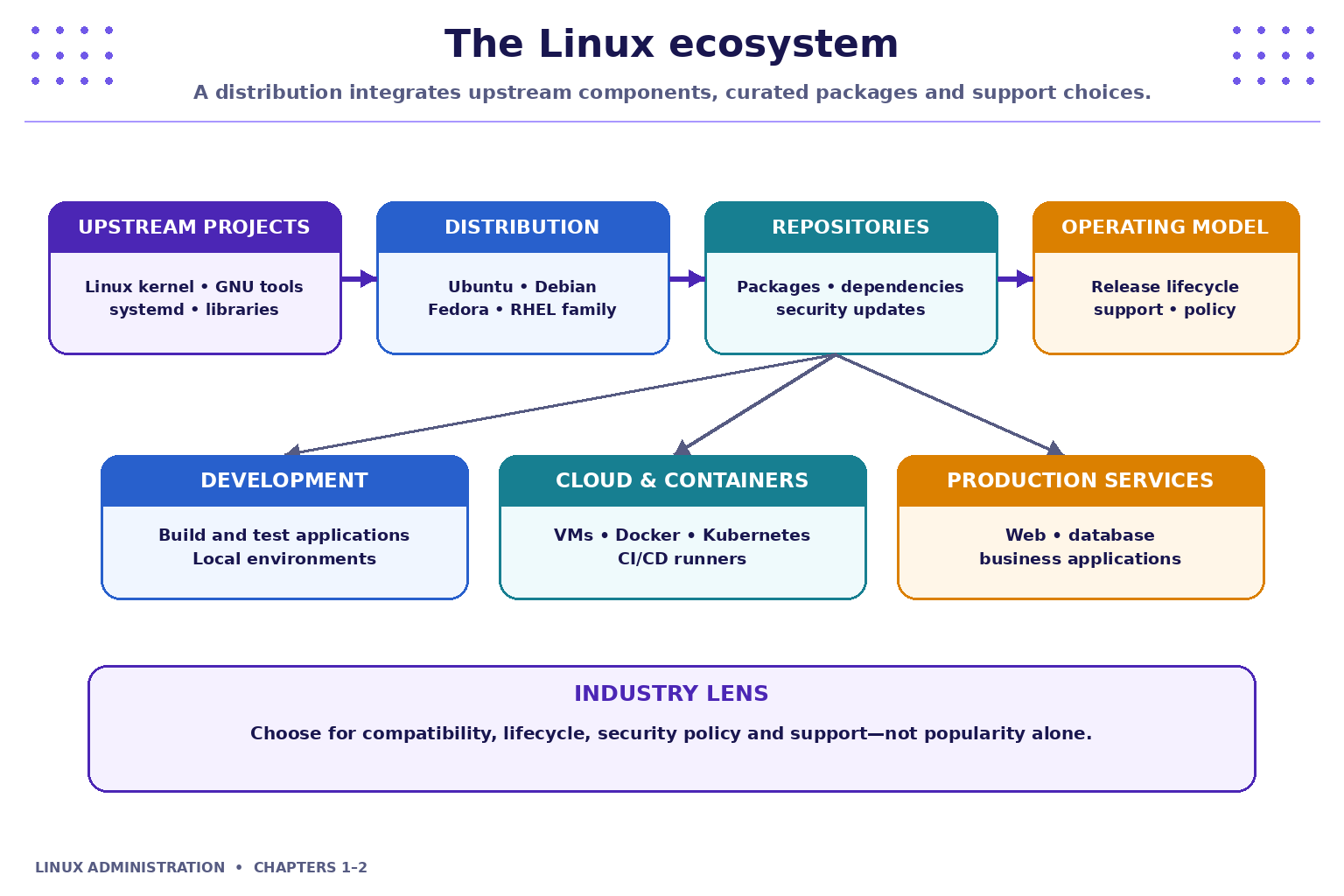
A Linux environment is assembled from multiple components. The kernel provides core operating-system functions; a distribution selects and integrates components, supplies package-management conventions, sets defaults and follows a release/support model.
2.1 Upstream projects
Upstream projects are the original projects from which distributions obtain and integrate software. Examples include:
- Linux kernel: manages processes, memory, devices, filesystems and networking.
- GNU utilities and other command-line tools: provide many commands used in daily administration.
- systemd: commonly used on many distributions to initialize the system and manage services.
- Libraries and runtime components: allow applications to use operating-system capabilities without implementing everything themselves.
The exact components and defaults vary by distribution and release.
2.2 Linux distribution
A distribution (often shortened to distro) packages the kernel with a selected set of system components, tools, package repositories, defaults and release policies.
Examples include Ubuntu, Debian, Fedora and distributions in the RHEL-compatible ecosystem. They share many concepts and commands, but may differ in package managers, configuration defaults, release cadence and support arrangements.
2.3 Package repositories and package managers
A package repository is a source from which a distribution obtains software packages and updates. A package manager helps install, update, remove and track software while handling dependencies.
For example, Ubuntu commonly uses apt for package operations. Package-management commands are not the focus of Lecture 1; use only the commands demonstrated by the instructor and later chapters.
Operational importance: using distribution repositories and approved update processes helps teams maintain consistency and apply security fixes. Production changes should follow organizational change-control procedures.
2.4 Workloads
The same Linux platform may host a web server, application API, database, container runtime, scheduled jobs and monitoring agents. Understanding the shared host helps administrators distinguish an application problem from a system-level problem.
3. Linux Architecture: From Application to Hardware
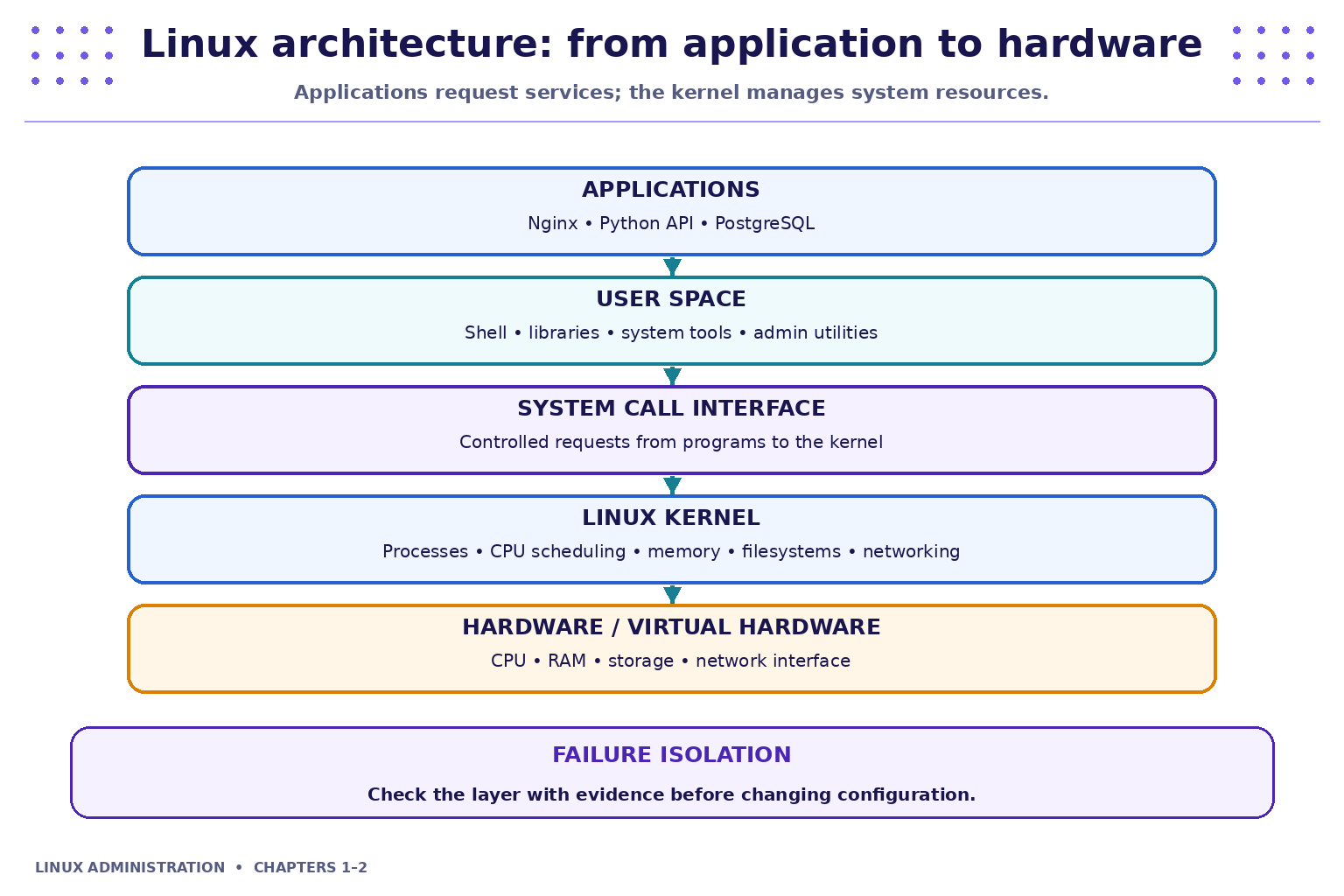
A layered model helps explain how software uses the operating system. It is a learning model; actual implementations contain more detail and additional interfaces.
3.1 Applications
Applications are programs such as Nginx, a Python API, PostgreSQL or a command-line utility. They perform business or operational tasks and request services from the operating system when they need to read files, allocate memory, communicate over a network or perform other protected operations.
Example: a database writes records to storage through operating-system interfaces; it does not independently control the physical disk hardware.
3.2 User space
User space is where most applications, shells, libraries and administrative tools execute. Processes are isolated from one another according to operating-system rules. Ordinary users typically work here without unrestricted control of the entire machine.
Examples include a shell session, a text editor, a web service process and common diagnostic commands.
3.3 System calls
System calls form a controlled interface through which programs request services from the kernel. A program might request file access, process creation or network communication. You do not need to memorize individual system calls in this introductory lecture; understand their role as the boundary between application code and kernel services.
3.4 Linux kernel
The kernel is the core of the operating system. Among its responsibilities are:
- Scheduling processes and allocating CPU time.
- Managing virtual memory and protecting process memory.
- Providing filesystem and device interfaces.
- Supporting networking operations.
- Enforcing important parts of process isolation and access-control mechanisms.
A kernel problem and an application problem are not the same thing. Administrators need evidence to identify the layer involved.
3.5 Hardware or virtual hardware
On a physical machine, the operating system uses hardware such as CPU, RAM, storage and network interfaces. In a virtual machine or cloud VM, the guest operating system usually sees virtualized hardware presented by the hypervisor or cloud platform.
Troubleshooting example: a database may fail to write data when storage is full even if CPU usage and available memory appear normal. Check the relevant resource rather than assuming every outage is a CPU problem.
4. Linux Distributions: Choosing the Right Environment
There is no single distribution that is best for every organization. Selection depends on the workload, compatibility, support needs, release policy, security requirements and the skills available to operate it.
Ubuntu
- Widely used for developer workstations, cloud VMs and server workloads.
- A practical default for this course because Ubuntu is commonly available in WSL2 and virtual-machine images.
- Uses Debian-family package conventions, including
apt.
Debian
- Known for a conservative, stability-focused approach to releases.
- Used as a server operating system and as a base for other distributions.
- Uses the Debian package ecosystem.
Fedora
- Community distribution that often adopts newer technologies relatively early.
- Useful for learning contemporary Linux tools and development environments.
- Release and support expectations differ from enterprise distributions.
RHEL and compatible distributions
- The Red Hat Enterprise Linux family is associated with enterprise support, lifecycle planning and managed operational environments.
- RHEL-compatible distributions may target compatibility with parts of that ecosystem, but support terms and product details differ by vendor.
- Organizations should verify current vendor policies before making production decisions.
| Decision factor | Questions to ask |
|---|---|
| Compatibility | Does the application support this distribution and version? |
| Lifecycle | How long is the release supported, and how are upgrades handled? |
| Security | How are security updates delivered and monitored? |
| Support | Is community support enough, or is a vendor support contract required? |
| Operations | Do the team’s tools, automation and skills support this environment? |
| Cost | What are the licensing, hosting, support and operational costs? |
Key point: many commands are similar across distributions, but package commands, service defaults, configuration locations and release policies can differ. Always check the environment you are actually using.
5. Kernel vs Shell: Different Responsibilities
The kernel and shell work together, but they are not interchangeable.
The kernel — resource manager
The kernel manages processes, memory, devices, filesystems and networking. It enforces boundaries that help prevent one process or user from freely controlling all other processes and system resources.
The shell — command interpreter
A shell reads commands, interprets shell syntax, expands variables and patterns, starts programs, connects commands with pipes, and reports output and exit status. Examples include Bash and other compatible or alternative shells.
When you type a command such as pwd, the shell interprets the command and runs the relevant program or built-in. That command obtains information about the current working directory; it is not itself the kernel.
| Component | Main responsibility | Example |
|---|---|---|
| Kernel | Core resource and hardware management | Process scheduling, memory and filesystem operations |
| Shell | Interpret commands and scripts | Bash prompt, variables and command pipelines |
| Utility | Perform a focused task | pwd, ls, cat, uname |
| Application/service | Deliver application functionality | Nginx, PostgreSQL, an API service |
A first command set
Run these commands one at a time in your Linux terminal:
whoami
pwd
ls -la
uname -r
cat /etc/os-release
echo "$SHELL"
What each command tells you
whoami— prints the effective username for the current command context.pwd— prints the current working directory.ls -la— lists directory entries, including hidden entries, with details such as permissions and ownership. The output is for inspection; do not change permissions in this introductory lab.uname -r— prints the running kernel release string. In WSL2, this is the Linux kernel used by the WSL environment; it is not the Windows version.cat /etc/os-release— displays identification fields for the distribution, such as its name and version.echo "$SHELL"— displays the shell path recorded in theSHELLenvironment variable. It may describe the user's configured shell and does not always prove which shell process is currently executing a script.
Record your environment
Write down the following values in your lab notebook:
| Item | Command or source | Your result |
|---|---|---|
| Current username | whoami |
|
| Current directory | pwd |
|
| Distribution and version | cat /etc/os-release |
|
| Kernel release | uname -r |
|
| Shell environment value | echo "$SHELL" |
Different students may see different usernames, directory paths, kernel release strings and distribution versions. Different output is expected; explain what the output means rather than trying to make every screen identical.
6. Choosing a Linux Lab Environment
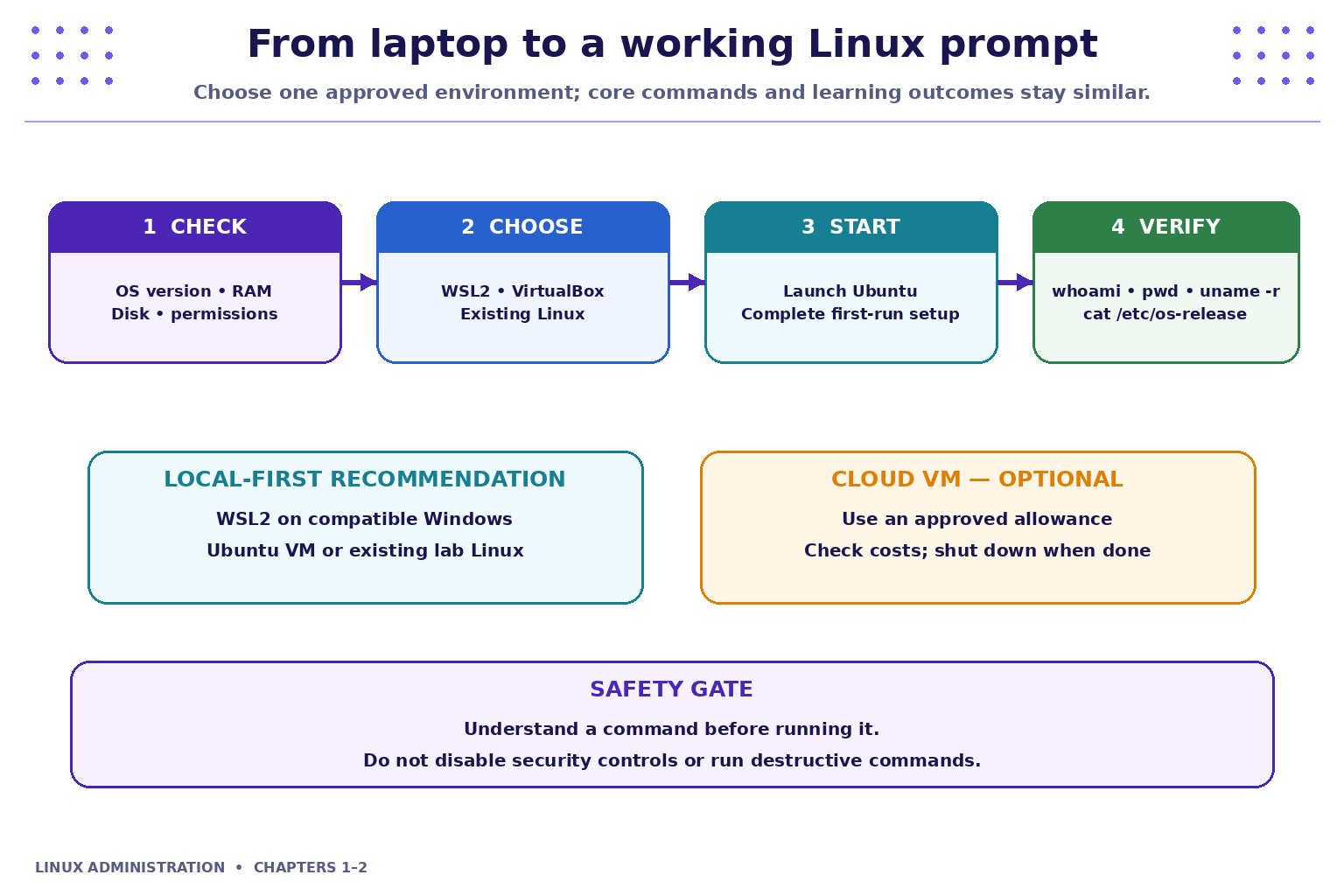
For this course, prefer a local environment first. Cloud resources are optional and should only be used when approved and when costs and access are understood.
Option A: WSL2 with Ubuntu
Windows Subsystem for Linux (WSL) allows supported Windows systems to run a Linux environment. WSL2 uses a lightweight virtualized Linux environment and is a convenient option for command-line learning without replacing Windows.
Advantages
- Integrates Linux command-line work with a Windows laptop.
- Suitable for learning many Linux commands and developer workflows.
- Usually lighter to get started with than a full desktop virtual machine.
Considerations
- Windows version, virtualization support, system policy and installation permissions can affect setup.
- Some low-level system-administration tasks differ from a conventional Linux server or full VM.
- Use the instructor's installation steps and verify the installed Ubuntu version.
Option B: VirtualBox with Ubuntu
A virtual machine runs a guest operating system inside a virtualized computer.
Advantages: provides a more complete guest OS environment and useful isolation from the host.
Considerations: needs disk space and memory, and hardware virtualization must be supported and enabled. Do not change firmware settings on a managed college or work laptop without permission.
Option C: Existing Linux machine
A lab computer or personal machine already running an approved Linux distribution can be used if you have permission to access it. Do not experiment on a shared or production machine without authorization.
Option D: Cloud VM
A cloud VM can resemble a real server environment and will be useful for later topics such as SSH, services, logs and firewall concepts.
- Use only an instructor-approved account and image.
- Check pricing, free-tier limits and regional availability before creating resources.
- Configure budget alerts where available and shut down or delete resources when no longer required.
- Do not expose SSH or other services publicly without understanding and following the lab's security instructions.
Recommendation for Lecture 1: use WSL2 with Ubuntu if it is supported on your laptop; otherwise use an approved Ubuntu VM, existing Linux machine or instructor-tested browser terminal. The essential objective today is a working prompt and a successful command check.
7. Lab Setup: A Repeatable Checklist
Use this checklist regardless of which approved environment you select.
- Check prerequisites. Confirm your operating-system version, available memory and disk space, virtualization support if needed, and whether you have installation permission.
- Choose one route. Use WSL2, VirtualBox, existing Linux or an instructor-approved browser terminal. Avoid setting up multiple environments during the first lab unless asked.
- Start the environment. Launch Ubuntu or the approved Linux terminal. Complete the first-run account setup if prompted.
- Verify the prompt. Run the six inspection commands from the previous section.
- Record results. Note the distribution, kernel release, username and current directory.
- Capture issues clearly. If something fails, record the exact command and full error text. Remove passwords, tokens and other secrets before sharing screenshots or logs.
Troubleshooting common setup problems
command not found
Check the spelling and capitalization. Confirm you are in the intended Linux environment and determine whether the utility is available. Do not install random packages or change PATH without understanding the cause.
Permission denied
The current user or process may not have permission to perform the requested action. Read the exact error and inspect the context. Do not automatically retry with elevated privileges; use sudo only when justified, authorized and covered by the lab instructions. Lecture 1 does not require sudo, chmod or chown.
WSL2 or a virtual machine will not start
Record the exact error. Check the prerequisites and system policy, and ask the instructor before changing Windows features, firmware settings or security controls on a managed device.
Package download or network failure
Possible causes include connectivity, DNS, proxy or firewall restrictions. Capture the error and isolate the issue. Never disable security controls blindly to make a download work.
8. Industry Scenario: Investigating a Linux-Hosted Web Application
Imagine that an e-commerce website begins returning timeouts at 10:02 AM. Its architecture includes a browser, web server, application process and database. The Linux host supplies CPU, memory, storage and networking resources to the services.
CUSTOMER BROWSER
       |
       v
WEB SERVER (e.g., Nginx)
       |
       v
APPLICATION PROCESS / API
       |
       v
DATABASE (e.g., PostgreSQL)
       |
       v
LINUX HOST RESOURCES
CPU • RAM • STORAGE • NETWORK
A responsible first response is to:
- Confirm the symptom and scope: one user, all users, one endpoint or the whole application?
- Note the time and any recent deployment or configuration change.
- Gather evidence from the relevant service status, logs, resource usage and connectivity checks. These commands are covered in later lectures.
- Form one testable hypothesis at a time.
- Make only an authorized, controlled change, then verify whether it helped.
- Record findings and the next action for the team.
Avoid: rebooting immediately, deleting logs, changing several settings at once, or assuming that a timeout automatically means high CPU usage.
This approach is useful in production support, cloud operations, DevOps, site reliability engineering (SRE) and application development.
9. Hands-On Exercises
Complete these exercises in your selected Linux lab. Use your own outputs; do not copy a classmate's environment details.
Exercise 1: Identify your Linux environment
Run:
whoami
hostname
pwd
uname -r
cat /etc/os-release
Record the username, hostname, current directory, kernel release and distribution name/version. In two or three sentences, explain the difference between the kernel release and the distribution version.
Expected evidence: a short lab note containing command names and the values returned. Do not publish sensitive system details from a shared or production host.
Exercise 2: Observe the filesystem listing
Run:
pwd
ls
ls -la
Compare the outputs. Identify the current directory and one entry that appears in ls -la but not in the ordinary ls output. Explain what the extra listing reveals. Do not change permissions or ownership.
Exercise 3: Compare the kernel and shell
Run:
uname -r
echo "$SHELL"
Write one sentence for each command explaining what it reports. Explain why these values describe different things.
Exercise 4: Choose a lab environment
For your own laptop or lab computer, select WSL2, VirtualBox, existing Linux or an approved browser terminal. Write down:
- Why this option fits the available hardware and permissions.
- One limitation or prerequisite.
- How you will verify that the lab is ready.
- What you will do if setup fails.
Exercise 5: Incident-response reasoning
A web application is slow. The CPU does not appear heavily used, but users still receive timeouts. List at least three other possible areas to investigate and describe what evidence you would seek. Do not assume a single cause without evidence.
Exercise 6: Explain the architecture
Draw the Linux layers from application down to hardware. Label user space, system-call interface and kernel. Add one example of a component at the application or user-space layer and one responsibility of the kernel.
10. Quick Reference: Lecture 1 Commands
| Command | Purpose | Safe use in this lab |
|---|---|---|
whoami |
Display current effective username | Run directly |
hostname |
Display system hostname | Run directly |
pwd |
Display current working directory | Run directly |
ls |
List directory entries | Run directly |
ls -la |
Include hidden entries and detailed listing | Inspect only |
uname -r |
Display kernel release | Run directly |
cat /etc/os-release |
Display distribution identification | Read-only inspection |
echo "$SHELL" |
Display the SHELL environment variable |
Run directly |
Commands are case-sensitive. A command's behavior can depend on the environment and options supplied. For Lecture 1, focus on observing and understanding rather than changing system configuration.
11. Quiz — Linux Administration Lecture 1
Choose the single best answer for each question. Attempt the quiz before checking the answer key.
1. Which component is responsible for CPU scheduling, memory management and core device access?
A. The shell
B. The Linux kernel
C. A package repository
D. A text editor
2. What does pwd display?
A. The current working directory
B. The current username
C. The running kernel release
D. The distribution version
3. Which statement best describes a Linux distribution?
A. It is only a command-line shell.
B. It is a cloud virtual machine provider.
C. It combines the Linux kernel with selected tools, packages, defaults and release choices.
D. It is a single application that manages CPU usage.
4. A student is using a compatible Windows laptop and needs a lightweight Linux command-line environment without replacing Windows. Which is a suitable option?
A. Delete the Windows system folders.
B. Disable the laptop's security software.
C. Reinstall the laptop with a different operating system immediately.
D. Use WSL2 with an appropriate Linux distribution, such as Ubuntu.
5. What is the best initial approach when a production service stops responding?
A. Reboot the host immediately without collecting information.
B. Inspect relevant service status, logs and system evidence before choosing a corrective action.
C. Delete log files to free space before checking disk usage.
D. Change several unrelated settings at the same time.
6. What does cat /etc/os-release help you identify?
A. The current working directory.
B. The process using the most CPU.
C. Distribution identification information, such as its name and version.
D. The current shell command history.
Answer Key with Explanations
- B — The Linux kernel. The kernel provides core process, memory, filesystem, networking and device-management functions.
- A — The current working directory.
pwdprints the path of the directory in which the shell session is currently working. - C — Kernel plus selected tools, packages, defaults and release choices. A distribution integrates the kernel with a broader usable operating-system environment.
- D — WSL2 with an appropriate Linux distribution. On a supported and permitted Windows system, WSL2 provides a Linux environment without requiring Windows to be replaced.
- B — Inspect service status, logs and evidence first. Evidence-led troubleshooting helps isolate the fault and reduces the risk of making an outage worse.
- C — Distribution identification information. The file commonly includes fields such as the distribution name and version; it does not report the current directory or CPU load.
Key Takeaways
- Linux is an ecosystem built around the Linux kernel and integrated with tools, libraries, package management and applications.
- A distribution provides a curated operating-system environment and a release/support model.
- The kernel manages core system resources; the shell interprets commands and scripts.
- WSL2, a virtual machine, an existing Linux computer or an approved browser terminal can provide a learning lab.
- Basic inspection commands help establish which user, directory, kernel and distribution you are working with.
- Good administrators observe first, test hypotheses safely, document findings and avoid unplanned changes.
Chapter Summary
In this chapter, you explored the Linux ecosystem, distribution choices, the layered Linux architecture, the roles of the kernel and shell, and safe options for preparing a lab. You also practiced inspection commands and applied an evidence-first approach to a realistic service incident.
You are now ready to work with command-line navigation, paths and help in the next chapter.
Next Chapter
Chapter 2: Command-Line Essentials, Paths, Help and Navigation