
Chapter 3: Files, Text Processing, Pipes, and Redirection
Learn to inspect files, find relevant text, combine small commands, and save useful output. These are everyday skills for developers, support engineers, system administrators, and anyone investigating an application running on Linux.
Lab environment: Ubuntu on WSL 2, an Ubuntu virtual machine, or an approved browser terminal. Commands are run as your normal user and do not require administrator privileges. All log records used below are fictional.
Learning objectives
By the end of this chapter, you should be able to:
- Create and inspect files and directories in a personal lab.
- Read text files using
cat,less,head, andtail. - Search and count matching lines with
grep. - Use
sort,uniq,find, andwcfor basic text/file investigation. - Connect commands with pipes (
|). - Save or append command output using
>and>>, and usetee. - Explain the difference between standard input, standard output, and standard error.
- Work safely with sample data and verify the results.
1. Industry scenario: investigate a login problem
A service desk reports that users are seeing intermittent login failures. The application writes events to a log file, but the file contains many unrelated records. An operator needs to find the relevant events, count them, and save evidence for the incident report.
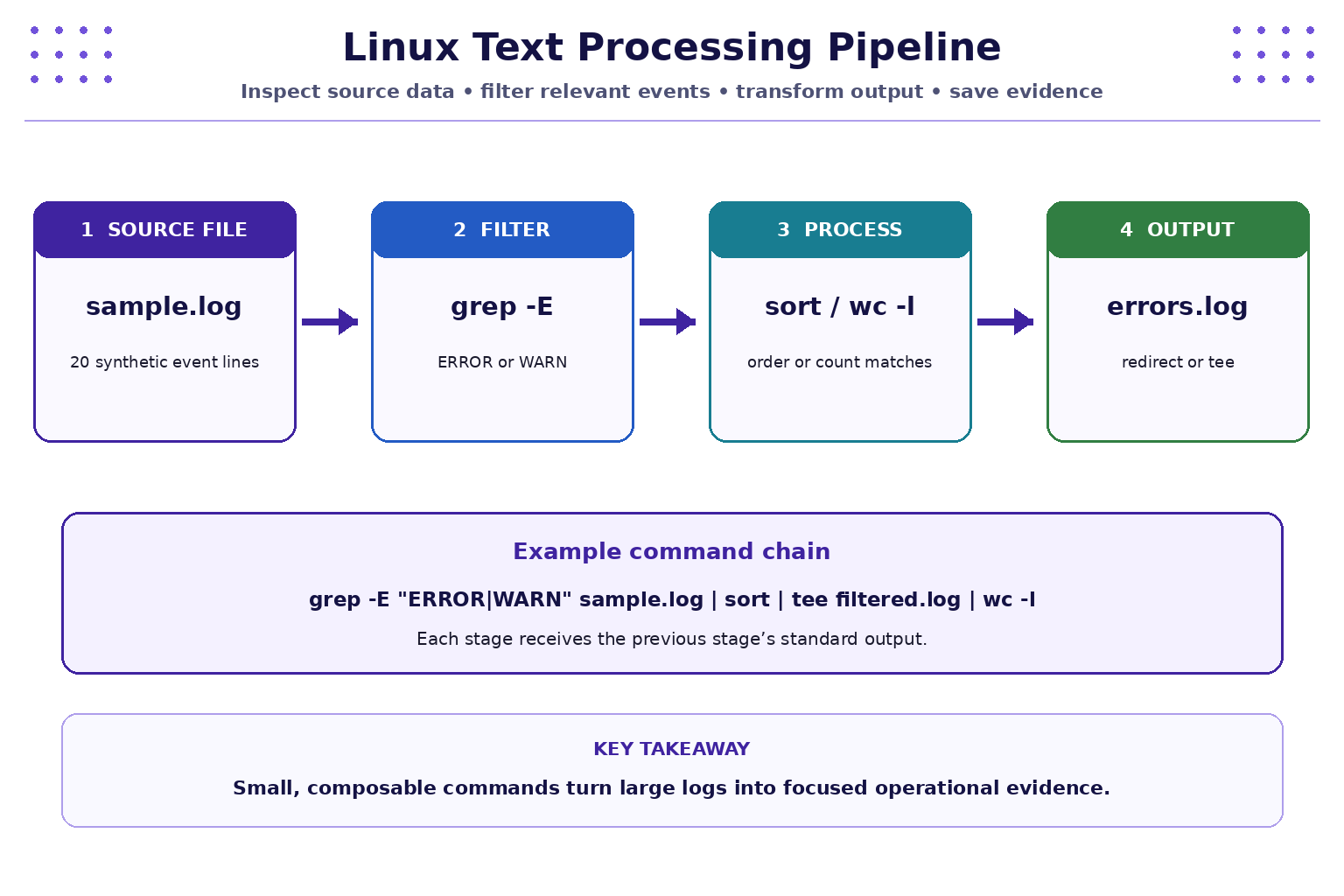
A reliable first-response workflow is:
- Inspect the file and confirm its location.
- Search for meaningful patterns such as
ERROR,WARN, orstatus=failed. - Filter, sort, preview, or count the matching lines.
- Save the results in a separate report file.
- Verify the saved file and counts before sharing the findings.
Do not change or delete the original log while investigating. In real operations, only access logs you are authorised to read, and follow your organisation’s privacy and incident-handling policies.
2. Prepare a practice directory and sample log
Create a separate workspace for this chapter:
mkdir -p ~/linux-lab/week3
cd ~/linux-lab/week3
pwd
mkdir -p creates the directory and any missing parent directories. cd moves into it, while pwd confirms the current location.
Now create a small, synthetic application log. Copy the entire block, including the final EOF line:
cat > sample.log <<'EOF'
2026-10-22 09:00:01 INFO app=portal event=service_start status=ok
2026-10-22 09:01:12 INFO user=student01 event=login status=success ip=192.168.1.21
2026-10-22 09:02:18 WARN user=student02 event=login status=failed ip=192.168.1.44 reason=bad_password
2026-10-22 09:03:04 ERROR app=portal event=db_connect status=failed reason=connection_timeout
2026-10-22 09:04:29 INFO user=student03 event=login status=success ip=192.168.1.37
2026-10-22 09:05:11 WARN app=portal event=api_latency status=high duration_ms=1850
2026-10-22 09:06:43 ERROR app=portal event=payment status=failed reason=upstream_unavailable
2026-10-22 09:07:08 INFO user=student02 event=login status=success ip=192.168.1.44
2026-10-22 09:08:52 WARN user=student04 event=login status=failed ip=192.168.1.58 reason=bad_password
2026-10-22 09:09:17 INFO app=portal event=health_check status=ok
2026-10-22 09:10:33 ERROR app=portal event=file_write status=failed reason=disk_full
2026-10-22 09:11:02 INFO user=student05 event=login status=success ip=192.168.1.62
2026-10-22 09:12:45 WARN app=portal event=api_latency status=high duration_ms=2100
2026-10-22 09:13:27 INFO user=student01 event=logout status=success
2026-10-22 09:14:59 ERROR app=portal event=auth_service status=unavailable
2026-10-22 09:15:20 INFO app=portal event=health_check status=ok
2026-10-22 09:16:41 WARN user=student06 event=login status=failed ip=192.168.1.73 reason=bad_password
2026-10-22 09:17:06 INFO app=portal event=report_export status=success
2026-10-22 09:18:39 ERROR app=portal event=api_request status=failed reason=internal_error
2026-10-22 09:19:54 INFO user=student03 event=logout status=success
EOF
The <<'EOF' syntax is called a here-document. It feeds the lines between the markers into cat. The quoted marker prevents shell variable and command expansion in the sample. The > operator creates sample.log or replaces its existing contents, so use it only for this practice file.
Confirm that the file exists and contains 20 lines:
ls -lh sample.log
wc -l sample.log
Expected line count: 20 sample.log.
3. Inspect files without editing them
Different commands are useful for different file sizes and tasks.
| Command | Purpose |
|---|---|
cat sample.log |
Display the entire short file |
less sample.log |
Read a longer file interactively; press q to quit |
head sample.log |
Display the first 10 lines by default |
head -n 5 sample.log |
Display the first five lines |
tail sample.log |
Display the last 10 lines by default |
tail -n 5 sample.log |
Display the last five lines |
wc -l sample.log |
Count newline-delimited lines |
file sample.log |
Identify the file type |
Try:
head -n 5 sample.log
tail -n 5 sample.log
The first command shows the beginning of the timeline; the second shows the most recent records in this static sample. On a live system, tail -f can follow a file as new lines are written, but avoid using it on logs you are not authorised to access.
4. Search with grep
grep prints lines that match a text pattern. It is one of the most useful first tools for investigating text files.
grep "ERROR" sample.log
grep "WARN" sample.log
grep "login" sample.log
grep "status=failed" sample.log
Useful options:
-n— include line numbers.-i— ignore letter case.-c— count matching lines.-v— show lines that do not match.-E— enable extended patterns, including alternatives separated by|.
Examples:
grep -n "ERROR" sample.log
grep -i "error" sample.log
grep -c "ERROR" sample.log
grep -v "INFO" sample.log
grep -E "ERROR|WARN" sample.log
For the exact supplied sample, grep -c "ERROR" sample.log returns 5, grep -c "WARN" sample.log returns 4, and grep -c "status=failed" sample.log returns 6. The last count is not the sum of ERROR and WARN lines: it matches the literal text status=failed, wherever it appears.
If no lines match, grep normally prints nothing and returns a non-zero status. Check spelling, letter case, and whether you are searching the correct file.
5. More useful text tools
sort — order matching lines
grep -E "ERROR|WARN" sample.log | sort
This sorts the matching lines lexicographically. Since each line begins with a timestamp in the same format, the displayed order will also be chronological for this sample.
uniq — identify adjacent duplicates
uniq compares neighbouring lines, so sort first when you want to group repeated values:
grep "event=login" sample.log | sort | uniq
Count repeated identical lines with uniq -c. Note that this counts identical complete lines, not merely repeated usernames if the timestamps differ.
wc — count lines, words, or bytes
wc -l sample.log
wc -w sample.log
wc -c sample.log
Use wc -l to count lines, wc -w for whitespace-separated words, and wc -c for bytes. These measurements answer different questions.
find — locate files by name
find searches directory trees for files and directories:
find ~/linux-lab -type f -name "*.log"
find . -type f -name "sample.log"
The first command lists .log files under your lab directory. The second searches from the current directory. Quoting "*.log" prevents the shell from expanding the wildcard before find receives it.
6. Pipes: connect commands
A pipe, written |, sends the standard output of one command to the standard input of the next. It lets you build a workflow from small tools rather than writing one large command.
grep -E "ERROR|WARN" sample.log | wc -l
grep "login" sample.log | wc -l
grep "ERROR" sample.log | head -n 2
grep "login" sample.log | tail -n 3
grep "user=" sample.log | sort
Read a pipeline from left to right:
grep -E "ERROR|WARN" sample.log | sort | wc -l
grepselects lines containing eitherERRORorWARN.sortorders the selected lines.wc -lcounts the lines it receives.
For the supplied sample, the combined ERROR-or-WARN count is 9.
A pipe normally connects standard output, not standard error. This distinction matters when a command emits an error message instead of its regular results.
7. Redirection: save command output
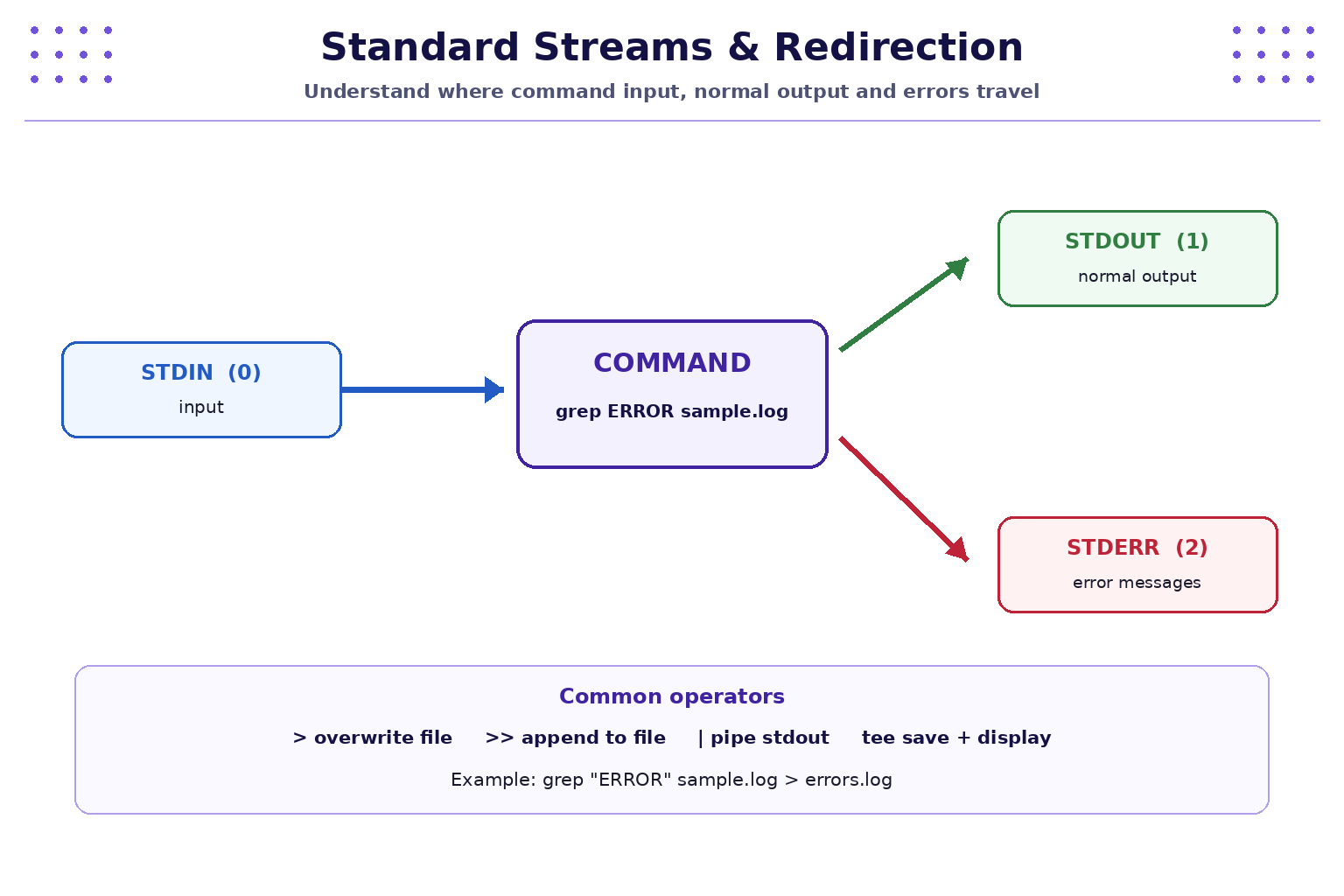
Redirection sends command output somewhere other than the terminal.
> — create or overwrite a file
grep "ERROR" sample.log > errors.log
cat errors.log
If errors.log already exists, > replaces its contents. The source file sample.log is not changed by this command.
>> — append to a file
grep "login" sample.log >> login-events.log
tail -n 3 login-events.log
>> adds output at the end of the target file, creating it if needed. Running this command repeatedly appends the matching lines again, so the report may contain duplicates.
2> — save error messages separately
Standard error is file descriptor 2. You can redirect it independently:
find ./missing-folder -type f 2> find-errors.log
cat find-errors.log
This deliberately searches for a nonexistent folder to demonstrate an error. The exact wording depends on the environment. If the command emits no errors, the file may be empty.
tee — display and save output
grep "status=failed" sample.log | tee failed-events.log
cat failed-events.log
tee writes received lines to a file and also displays them in the terminal. By default, it overwrites the destination file; use tee -a filename to append instead.
8. Combine search, pipes, and redirection
Try these commands from ~/linux-lab/week3:
grep "ERROR" sample.log > errors.log
grep "WARN" sample.log > warnings.log
wc -l errors.log warnings.log
grep -E "ERROR|WARN" sample.log | sort
grep -E "ERROR|WARN" sample.log | wc -l
grep "status=failed" sample.log | tee failed-events.log
grep "api_latency" sample.log | tee latency-events.log | wc -l
ls -lh
Expected observations for the exact sample:
errors.logcontains 5 lines.warnings.logcontains 4 lines.- The combined ERROR-or-WARN query counts 9 lines.
- The
api_latencyquery counts 2 lines. failed-events.logcontains the six lines withstatus=failed.
Use wc -l errors.log warnings.log to verify the saved report sizes. The final line of wc output may show a combined total.
9. Practical lab: build a small incident report
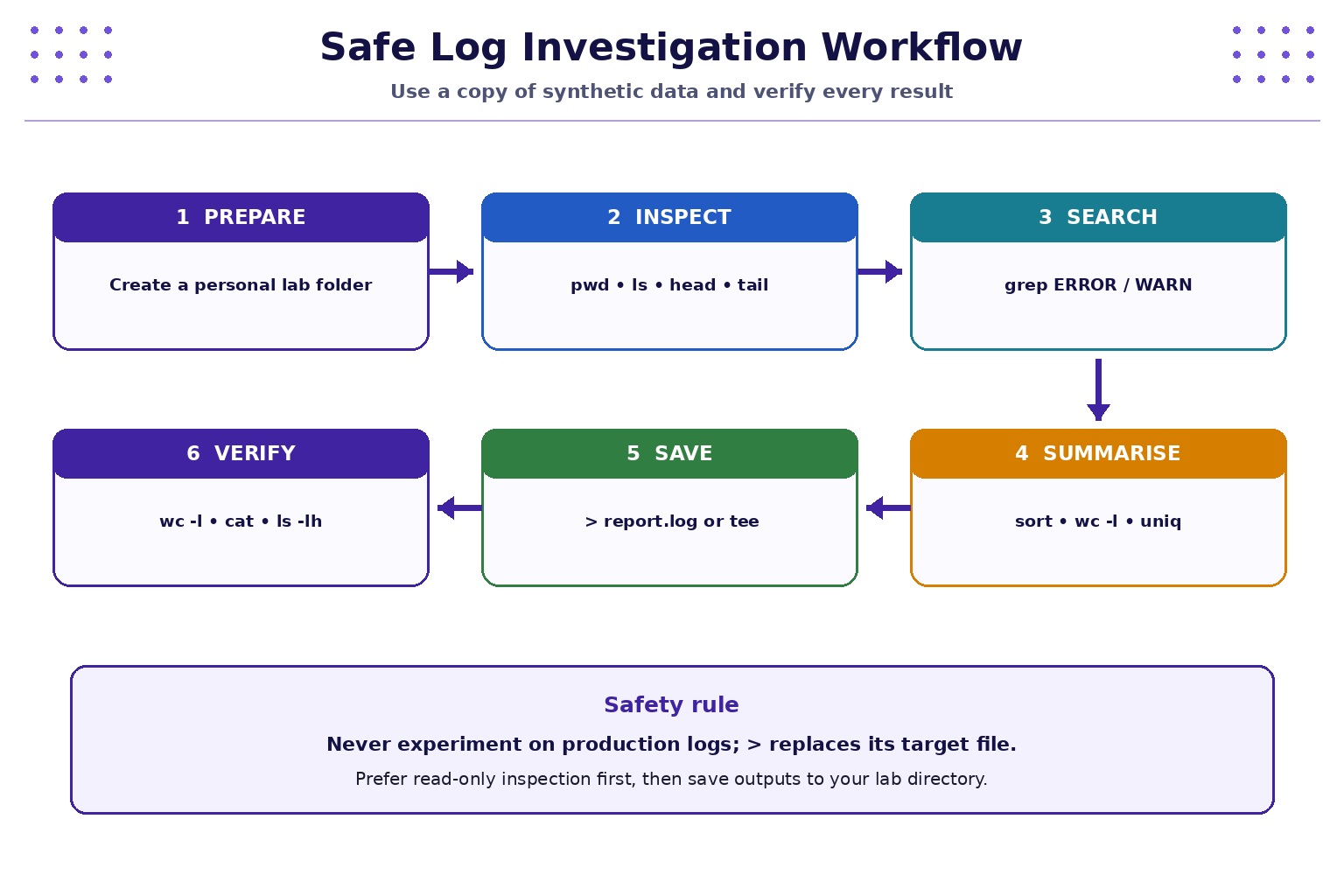
Task: investigate the synthetic login and service log, and leave a set of report files in your lab directory.
- Create the sample file from Section 2.
- Display the first five and last five records.
- Search for all
ERRORrecords and save them toerrors.log. - Search for all
WARNrecords and save them towarnings.log. - Count
ERROR,WARN,login, andstatus=failedmatches. - Display all ERROR and WARN lines in sorted order.
- Save failed-status records while also displaying them using
tee. - List the generated files and verify the saved line counts.
Suggested command sequence:
cd ~/linux-lab/week3
head -n 5 sample.log
tail -n 5 sample.log
grep "ERROR" sample.log > errors.log
grep "WARN" sample.log > warnings.log
grep -c "ERROR" sample.log
grep -c "WARN" sample.log
grep "status=failed" sample.log | wc -l
grep "login" sample.log | wc -l
grep -E "ERROR|WARN" sample.log | sort
grep "status=failed" sample.log | tee failed-events.log
ls -lh
wc -l sample.log errors.log warnings.log failed-events.log
Record the counts and one or two observations. For example, a repeated database connection timeout or disk-full message would lead an operator to inspect the relevant service and resource metrics next—not to delete the log.
10. Troubleshooting and safe practice
sample.lognot found: runpwdandls -l, then return to~/linux-lab/week3.- No results from
grep: verify the exact pattern, case, and filename.ERRORanderrordiffer unless you use-i. - Wrong line count: check whether the file was created with all 20 lines and whether you used the exact sample.
- Output file unexpectedly empty: repeat the search without redirection first, so you can see whether it matches anything.
- Report contains duplicate lines: check whether an earlier command used
>>ortee -a. - Permission denied: verify that you are working inside your own lab folder; do not immediately retry with
sudo. - A command overwrote a report: recreate the report from the original synthetic
sample.log. Use>only when replacement is intended. - Browser terminal behaves differently: some environments have limited utilities or session persistence. Use the recommended Ubuntu environment if a required command is unavailable.
Safety rule: never use these exercises to inspect, copy, or alter production logs unless you have explicit authorisation and a valid operational reason. Logs may contain personal data, session identifiers, tokens, or other sensitive information.
11. Quick command reference
| Command / operator | Meaning |
|---|---|
cat FILE |
Display a short file |
less FILE |
Browse a longer file; q exits |
head -n 5 FILE |
Show first five lines |
tail -n 5 FILE |
Show last five lines |
grep "text" FILE |
Print matching lines |
grep -n "text" FILE |
Matching lines with line numbers |
grep -c "text" FILE |
Count matching lines |
| `grep -E "A | B" FILE` |
sort |
Sort input lines |
uniq -c |
Count adjacent identical lines |
wc -l FILE |
Count lines |
find PATH -type f -name "*.log" |
Find log files |
COMMAND > FILE |
Write/overwrite output file |
COMMAND >> FILE |
Append output |
COMMAND 2> FILE |
Redirect standard error |
COMMAND1 | COMMAND2 |
Pipe standard output into next command |
COMMAND | tee FILE |
Display output and save a copy |
12. Knowledge check — MCQs
Choose the best answer for each question.
1. Which command displays only the first five lines of a file?
A. tail -n 5 sample.log
B. head -n 5 sample.log
C. wc -l sample.log
D. sort sample.log
2. What does grep -c "ERROR" sample.log return?
A. The matching lines themselves
B. The number of characters in the file
C. The number of lines containing ERROR
D. The number of files in the directory
3. What does the pipe operator (|) do?
A. Deletes the file on its left
B. Sends one command’s standard output to the next command’s standard input
C. Appends output to a file
D. Runs every command as administrator
4. What is the main difference between > and >>?
A. > appends, while >> overwrites
B. Both always append
C. > overwrites or creates; >> appends or creates
D. > redirects errors only
5. Which command both displays matching lines and saves them to failed-events.log?
A. grep "status=failed" sample.log | tee failed-events.log
B. grep "status=failed" sample.log >>
C. wc -l sample.log > failed-events.log
D. find sample.log | grep "status=failed"
6. Why should the practice commands be run against sample.log rather than production logs?
A. grep cannot read production logs
B. Production logs are always binary
C. A controlled synthetic file avoids unauthorised access or accidental impact on sensitive operational data
D. Pipes work only with sample files
Answers and explanations
- B —
head -n 5displays the first five lines. - C —
-ccounts lines that match the pattern. - B — a pipe connects standard output from the left command to standard input on the right.
- C —
>replaces an existing target;>>appends to it. - A —
teewrites the incoming lines to a file and displays them. - C — use synthetic lab data unless access to real logs is explicitly authorised and appropriate.
Key takeaways
- Inspect a file before processing it; use
head,tail, orlessto view the right amount. grepfilters lines by text patterns;sort,uniq,wc, andfindhelp organise and measure results.- Pipes connect commands into a readable processing chain.
>overwrites,>>appends, andteedisplays while saving output.- Standard output and standard error are separate streams and can be redirected independently.
- Always verify generated reports and work within an authorised lab directory.
Next chapter
Chapter 4: Users, Groups, sudo, and Access Control — understand account identity, group membership, administrative privileges, and least privilege.