
Chapter 4: Users, Groups, sudo, and Access Control
Understand how Linux identifies users, associates them with groups, evaluates file permissions, and limits administrative access. These are foundational skills for developers, support engineers, and system administrators.
Lab environment: Ubuntu on WSL 2, an Ubuntu virtual machine, or an approved browser terminal. Begin with read-only inspection commands as your normal user. Administrative changes are optional and should only be performed in an instructor-approved environment.
Learning objectives
By the end of this chapter, you should be able to:
- Explain Linux users, UIDs, groups, and GIDs.
- Inspect your current identity and group membership.
- Read the owner, group, and permission fields in
ls -loutput. - Explain read, write, and execute permissions for files and directories.
- Describe the purpose and risks of
sudo. - Apply least-privilege reasoning to a simple project-folder scenario.
- Document an access finding without making unauthorised changes.
1. Industry scenario: who can access the project?
A development team shares a Linux server. Project files belong to different users and groups. One developer cannot read a required file, while another account appears to have more access than its role needs. Before changing anything, an administrator must identify the accounts, inspect ownership and permissions, understand the business need, and follow the approved access process.
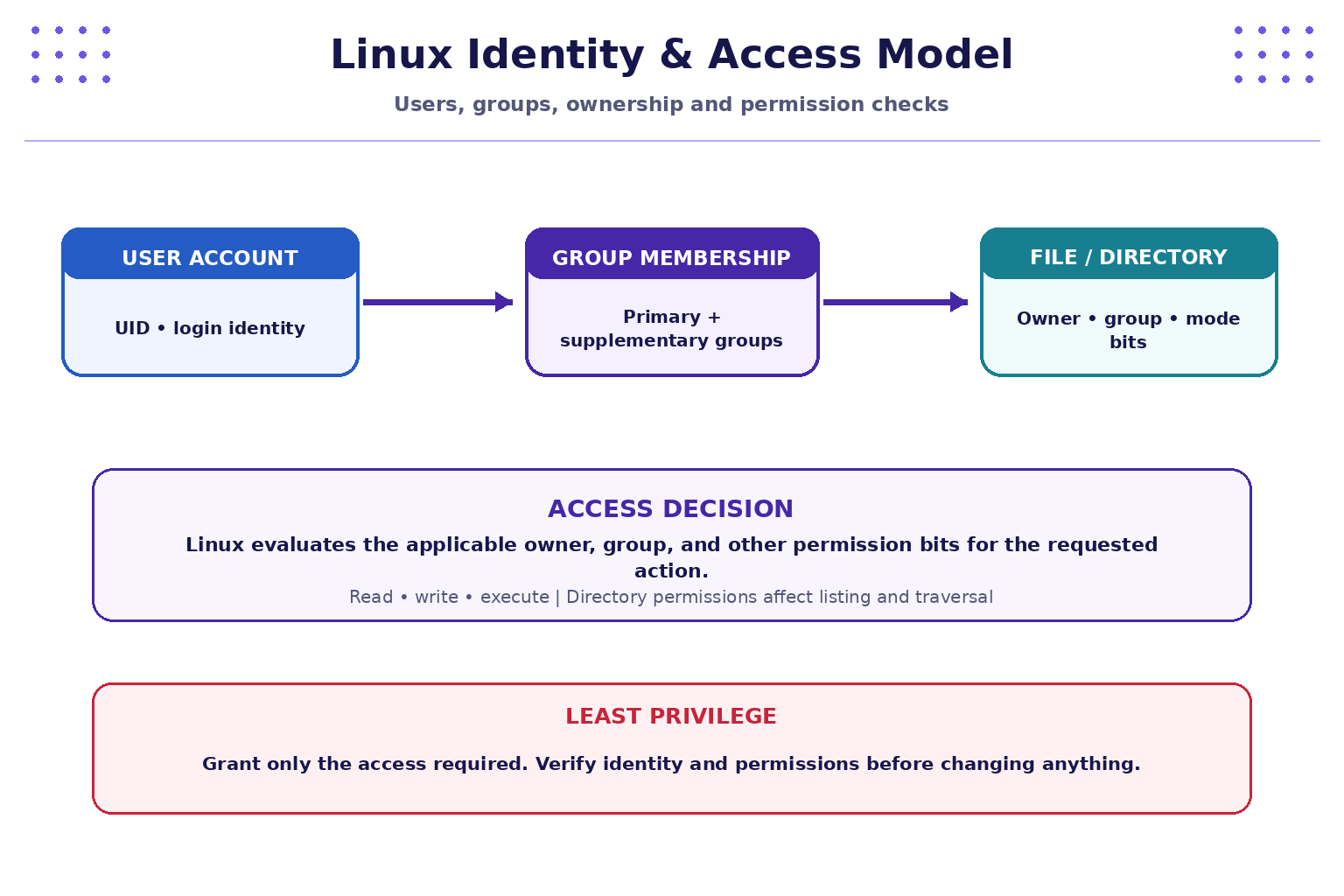
The safe sequence is identify → inspect → assess → request/approve → change (if authorised) → verify → document. Do not guess at permissions or apply broad access changes just to make an error disappear.
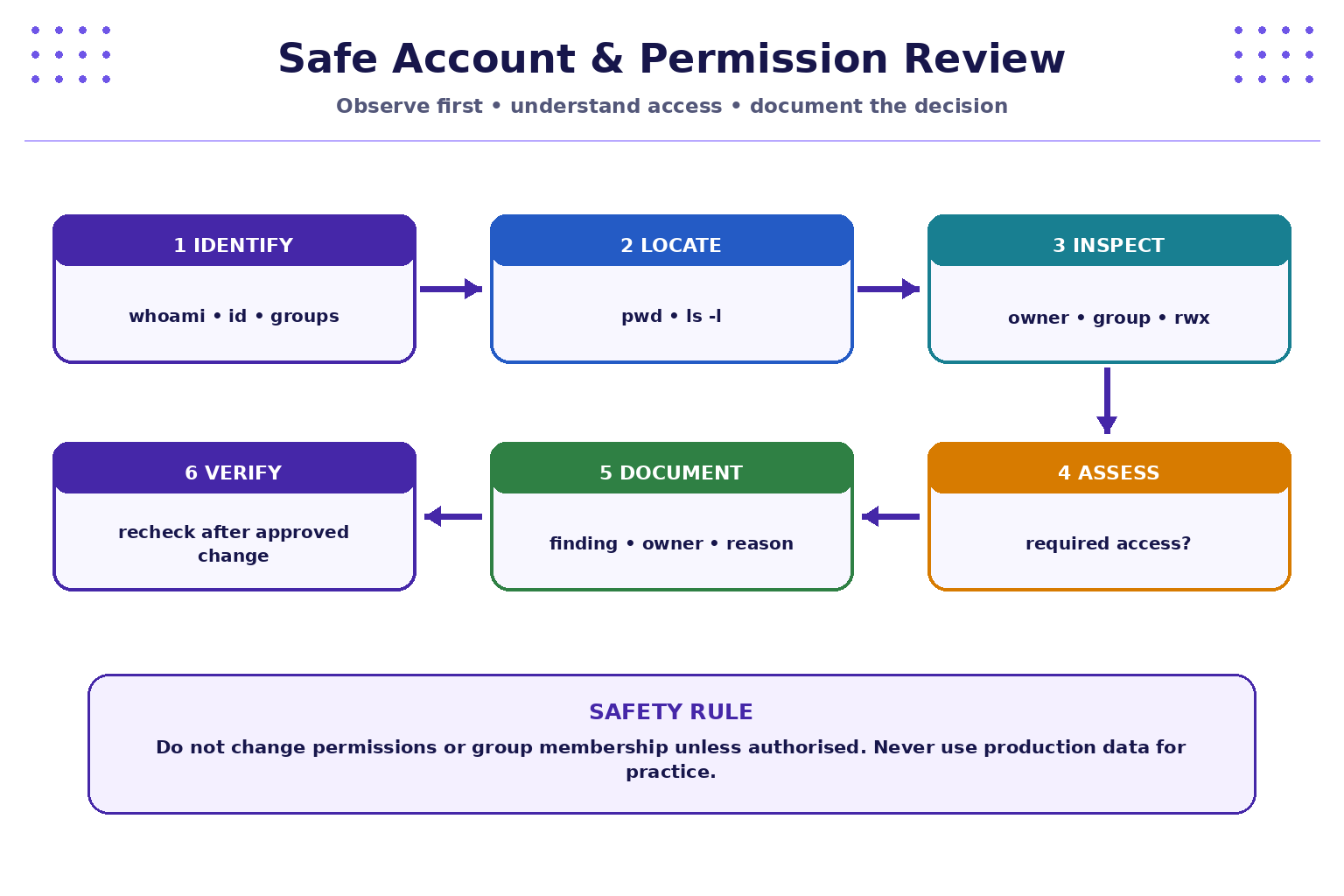
Use this workflow during the practical labs: identify the account, inspect the resource and permissions, assess the minimum required access, document the decision, and verify only after an authorised change.
2. Quick reference: users, groups, and identity commands
| Command | Brief description | Common options / notes | Simple example |
|---|---|---|---|
whoami |
Print the effective username. | No common options needed. | whoami |
id |
Show UID, primary GID, and supplementary groups. | -u user ID; -g primary group ID; -G group IDs; -n names. |
id · id -nG |
groups |
Show group membership. | Optional username. | groups · groups alice |
getent passwd |
Query account records using configured name services. | Add a username to query one entry. | getent passwd "$USER" |
getent group |
Query group records. | Add a group name for a specific entry. | getent group developers |
pwd |
Print the current directory. | -L logical path; -P physical path. |
pwd |
ls -l |
Show file details including owner, group, and mode. | -a includes hidden names; -h human-readable sizes. |
ls -lah |
ls -ld DIR |
Show the directory itself, not its contents. | Useful for inspecting the directory entry. | ls -ld ~/linux-lab |
stat FILE |
Show file metadata, including mode and ownership. | Output varies by platform. | stat notes.txt |
umask |
Display the current file-creation permission mask. | -S symbolic display on common shells. |
umask · umask -S |
sudo -l |
Show commands the current account may run through sudo. | Requires sudo policy/environment support. | sudo -l |
sudo COMMAND |
Run an approved command with elevated privileges. | Exact permissions depend on policy. | sudo -l first; do not elevate for routine inspection. |
man COMMAND |
Read a command's manual page. | -k searches descriptions. |
man id · man sudo |
command --help |
Show brief usage information where supported. | Not every command supports it. | ls --help |
Environment note: Usernames such as alice and groups such as developers are examples. They may not exist in your terminal. getent can return no result when a name is absent or the account source is unavailable.
3. Linux identity: UID, GID, and groups
Linux uses numeric identifiers internally:
- UID (User ID): identifies a user account.
- GID (Group ID): identifies a group.
- Primary group: the default group associated with the user's account.
- Supplementary groups: additional groups that can grant access to shared resources.
- Effective identity: the identity used for permission checks by a process; it may differ from the login identity in some controlled situations.
Run:
whoami
id
id -u
id -g
id -nG
groups
Compare the results. id -u prints the numeric UID; id -g prints the numeric primary GID; id -nG prints group names when available.
Inspect the current account record:
getent passwd "$USER"
The fields commonly include login name, password placeholder, UID, GID, descriptive information, home directory, and login shell. Do not publish account records from a shared or production system without approval.
Inspect a group entry if the group exists:
getent group
getent group developers
The group record typically includes group name, password placeholder, GID, and listed members. Primary group membership may not always be represented in the member list, so use id as well.
4. Read Linux permission notation
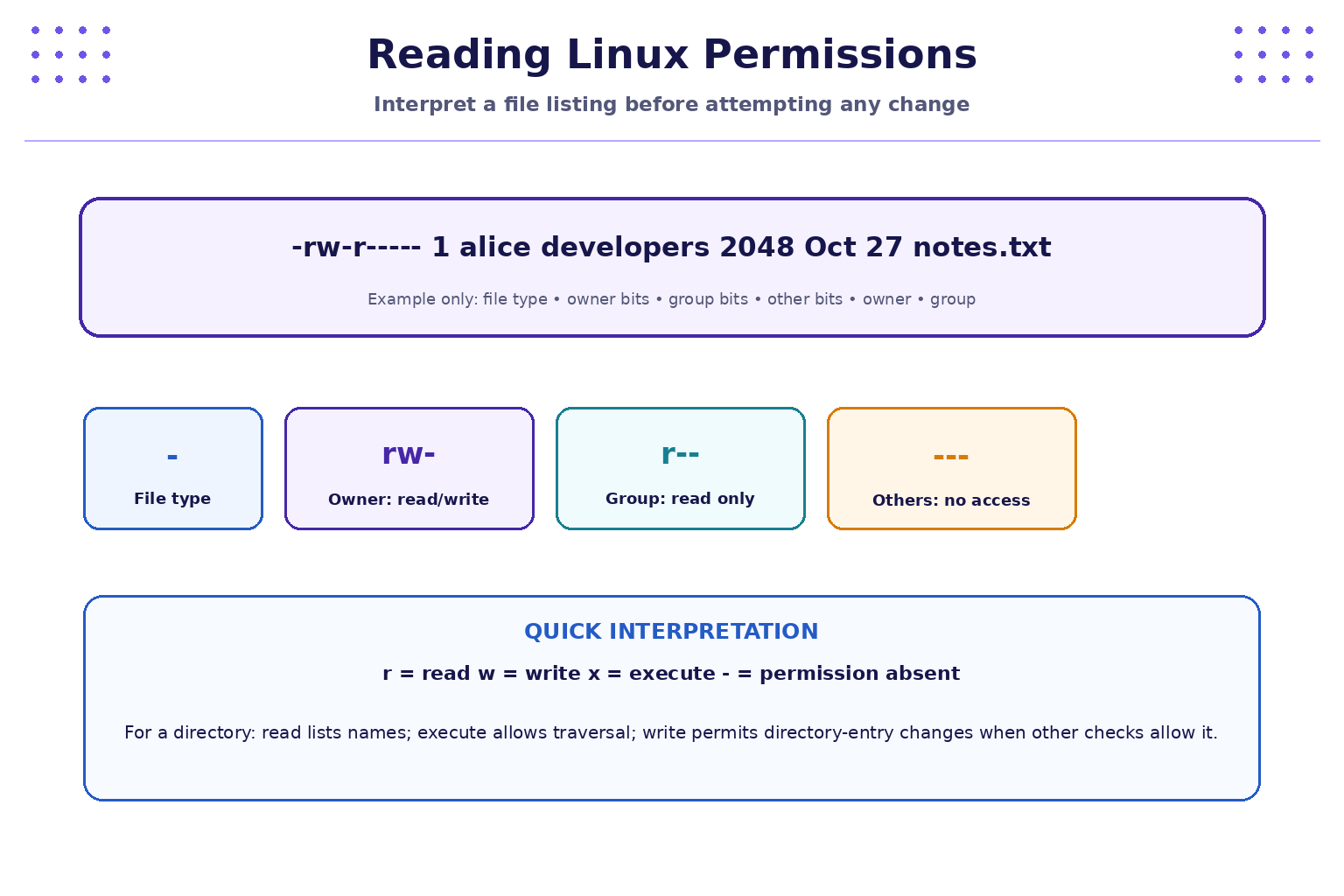
Run this in your lab folder:
touch notes.txt
ls -l notes.txt
stat notes.txt
A typical long listing might begin like this:
-rw-r----- 1 alice developers 2048 Oct 27 10:00 notes.txt
Interpret the fields:
| Field | Meaning |
|---|---|
- |
A regular file; d commonly indicates a directory. |
rw- |
Owner permissions: read and write, no execute. |
r-- |
Group permissions: read only. |
--- |
Other users have no permissions through this mode. |
alice |
Owner username in this example. |
developers |
Group name in this example. |
2048 |
File size in bytes in this example. |
Date/time and notes.txt |
Modification time and filename. |
What do r, w, and x mean?
For a regular file:
rallows reading file contents.wallows modifying file contents.xallows executing the file, subject to other system controls.
For a directory:
rallows listing names in the directory.wallows creating, removing, or renaming directory entries, subject to other checks.xallows traversal/search through the directory.
Directory permissions are not identical to file permissions. For example, the ability to read a file can depend on traversal permission for its parent directories.
5. Practical lab A — inspect identity and permissions
Run the commands below in your own permitted environment:
mkdir -p ~/linux-lab/week4
cd ~/linux-lab/week4
whoami
id
groups
pwd
touch team-notes.txt
echo "Access-control practice" > team-notes.txt
ls -l team-notes.txt
stat team-notes.txt
Answer in your notes:
- What username did
whoamidisplay? - What are your UID and primary GID?
- Which supplementary groups are shown?
- Who owns
team-notes.txtand which group is associated with it? - Which permission characters apply to the owner, group, and others?
- Which commands are read-only inspections, and which commands created or changed a file?
Your output may differ from another student's output. That is expected: identity and default permissions depend on the environment.
6. Practical lab B — reason about a shared project directory
Consider this fictional listing:
drwxr-x--- 2 lead developers 4096 Oct 27 project
-rw-r----- 1 lead developers  640 Oct 27 project/plan.txt
-rw------- 1 lead developers 1200 Oct 27 project/private-notes.txt
Discuss the following without changing any real permissions:
- Who owns the
projectdirectory? - Which group is associated with it?
- What can the owner, group, and others do with the directory based on the displayed mode?
- Why might a team member be able to enter the directory but not read
private-notes.txt? - What information should be gathered before asking an administrator to change access?
- Why is granting access to “everyone” usually a poor first response?
Expected reasoning: identify the intended users and tasks, inspect current identity and access, establish the minimum required access, obtain approval, then verify the approved change. The correct setting depends on the actual requirement; do not assume one universal permission mode.
7. sudo and administrative access
sudo allows an authorised user to run a command with elevated privileges according to the system's policy. It is not a general-purpose fix for permission errors.
Before using administrative access:
- Confirm the task genuinely requires it.
- Check the approved procedure and the exact command.
- Understand what files or system settings the command may change.
- Use the minimum required privilege.
- Verify and document the outcome.
On an instructor-approved Ubuntu VM, sudo -l may show which commands the account is permitted to run. In restricted browser terminals, sudo may be unavailable or intentionally misconfigured. If so, stop and use read-only exercises rather than trying to repair the environment.
Do not run group-management or permission-changing commands in a shared lab unless the instructor has explicitly authorised the operation and provided a disposable environment. Commands such as groupadd, usermod, chmod, and chown can affect access and require careful control; this chapter focuses on understanding and inspection first.
8. Least privilege in a real team
Least privilege means giving an identity only the permissions needed for its approved responsibilities, for only as long as needed.
| Role (example) | Typical need | Avoid |
|---|---|---|
| Developer | Read/write access to assigned source files and test resources. | Unrestricted production access by default. |
| Support engineer | Read relevant diagnostics and perform approved support actions. | Broad access to unrelated personal or confidential data. |
| Service account | Access only to the files, services, or APIs required by its workload. | Interactive login or broad administrator rights without a justified need. |
| Administrator | Approved privileged tasks with auditability. | Using elevated access for every routine activity. |
Controls should include named accounts, sensible group membership, approved access requests, periodic access reviews, prompt removal of access when roles change, and logging for privileged actions.
9. Practical lab C — write an access review
Use this fictional case: a new team member needs to read shared project documentation but does not need to edit release configuration.
Complete the table:
| Question | Your answer |
|---|---|
| Which resource is required? | |
| What exact task must the person perform? | |
| What access is currently shown by the listing? | |
| What is the minimum access needed? | |
| Who must approve the request? | |
| How will access be verified after an approved change? | |
| When should access be reviewed or removed? |
Do not make the change on a real system. The exercise is to produce a justified access decision and a verification plan.
10. Troubleshooting
- A username or group is not found: verify spelling and whether the account/group exists in this environment.
getentreturns no entry: the name may not exist in the configured account database.- Permission denied: check the current identity, directory path, ownership, and mode before taking any action.
sudois unavailable: do not attempt to repair a shared terminal; complete the read-only lab or use an approved VM.- Output differs from a classmate's: account IDs, default groups, ownership, and file-creation masks vary by environment.
- A directory listing is confusing: use
ls -ld directoryto inspect the directory itself andls -l directoryto inspect its contents.
11. Quick command recap
| Task | Command |
|---|---|
| Current username | whoami |
| UID, GID, groups | id |
| Group names | id -nG |
| Current directory | pwd |
| Current account record | getent passwd "$USER" |
| Group record | getent group developers |
| File owner and mode | ls -l notes.txt |
| Directory's own mode | ls -ld project |
| Detailed metadata | stat notes.txt |
| Current file-creation mask | umask |
| Sudo permissions (where supported) | sudo -l |
| Manual page | man id |
12. Knowledge check — MCQs
1. What does id display?
A. Only the current directory
B. User ID, group information, and related identity details
C. All running processes
D. Disk capacity
2. In -rw-r-----, what do the final three dashes represent?
A. Owner permissions
B. Group permissions
C. Other-user permissions
D. File size
3. What does execute (x) permission on a directory generally allow?
A. Traversal/search of the directory
B. Automatic administrator access
C. Encryption of all files inside
D. Permission changes on every file
4. What is the main purpose of sudo?
A. Permanently change the current username
B. Run a permitted command with elevated privileges
C. Display hidden files
D. List group members only
5. Which principle says accounts should have only the access they need?
A. Full access by default
B. Least privilege
C. Security through obscurity alone
D. Shared credentials
6. What is the safest first response to an unexplained permission error?
A. Make the directory writable by everyone
B. Run every command as administrator
C. Inspect identity, path, ownership, and permissions, then follow the approved process
D. Delete the file
Answers and explanations
- B —
iddisplays user and group identity information. - C — the last three characters describe permissions for other users.
- A — directory execute permission enables traversal/search, subject to other access checks.
- B —
sudoapplies configured privilege policy to a command. - B — least privilege limits unnecessary access and reduces the impact of mistakes or compromise.
- C — inspect first; do not respond with broad or unauthorised changes.
Key takeaways
- Linux identifies users and groups using numeric IDs and configured names.
id,groups,getent,ls -l, andstathelp investigate identity and access.- Permission notation separates owner, group, and other-user permissions.
- Directory permissions have different practical effects from regular-file permissions.
sudois privileged access, not a universal troubleshooting tool.- Least privilege, approval, verification, and documentation make access control safer.
Next chapter
Chapter 5: Processes, Services, and System Monitoring — learn to inspect running processes, understand resource usage, and observe system behaviour using appropriate commands.