
Chapter 2: Command-Line Essentials, Paths, Help and Navigation
A Linux administrator spends much of the working day at a command prompt: checking a service, locating a log, navigating a project directory, or running a deployment script. Small mistakes—such as assuming the wrong current directory or mistyping a path—can delay releases and lead to incorrect actions.
This chapter builds the command-line habits used in real operations teams. We will learn how to read a command, understand the Linux filesystem, move between directories, and find help instead of guessing.
The examples use a safe practice area under your home directory. They are suitable for Ubuntu on WSL2, a Linux virtual machine, an existing Linux system, or a browser-based shell such as Webminal. Exact output and available help pages may vary by environment.
🎯 Learning Objectives
By the end of this chapter, you will be able to:
- Identify the command, options and arguments in a command line.
- Explain the Linux filesystem tree and the meaning of
/,~,., and... - Distinguish absolute paths from relative paths.
- Use
pwd,ls,cdandmkdirto inspect and navigate safely. - Discover command usage with
--help,man,whatisandaproposwhere available. - Recognize common command-line errors and investigate them methodically.
- Apply a repeatable locate → inspect → navigate → verify workflow.
Industry Scenario: A Deployment Script Cannot Find Its Files
At 9:15 AM, a developer is preparing a release. A script expects a configuration file in the project directory, but the developer launched it from a different location. The relative path no longer points to the expected file, and the release is delayed.
The first response should not be to rerun the script repeatedly or make random changes. The operator should establish the current location, inspect the files, verify the path and consult the command's help.
Developer runs a command
          |
          v
Shell interprets command and paths
          |
          v
Filesystem resolves the target
          |
          v
Operator checks output and verifies result
Industry lesson: many command-line incidents are preventable through precise paths, careful reading and verification.
1. Understanding a Command Line
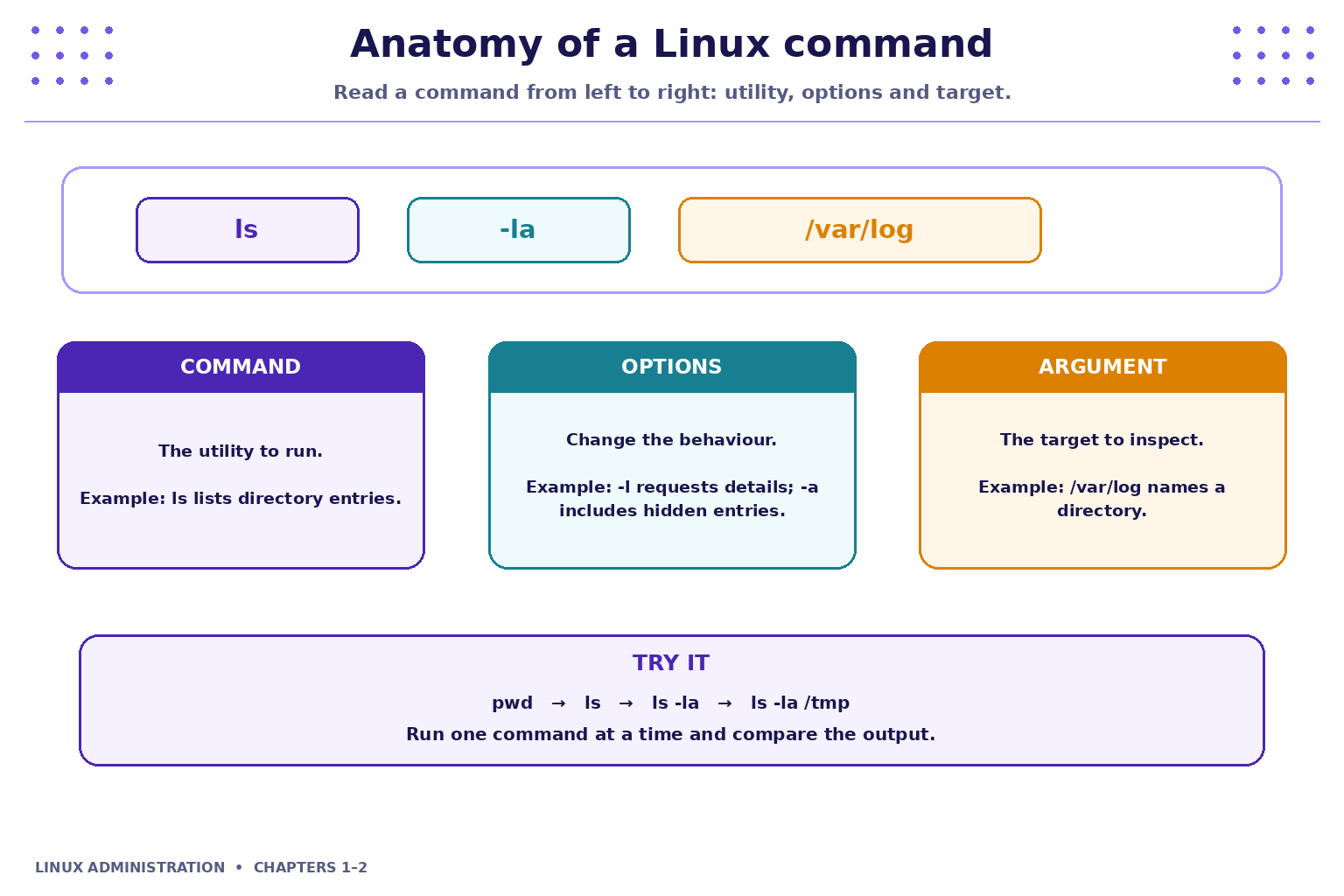
A command line is the text entered at a shell prompt. A common pattern is:
command [options] [arguments]
- Command: the utility to execute, such as
ls. - Options: flags that modify the command's behaviour, such as
-lor-a. - Arguments: the target or input, such as a directory path.
- Output: the result printed by the command. Errors may be printed separately.
Not every command requires options or arguments.
Example: Read the command from left to right
ls -la /var/log
| Part | Meaning |
|---|---|
ls |
Lists directory entries |
-l |
Requests a detailed listing |
-a |
Includes hidden entries |
/var/log |
The directory to inspect |
The combined -la form is a common shorthand for -l -a. Option syntax varies by utility; do not assume every command supports the same flags.
Try it
pwd
ls
ls -la
ls -la /tmp
Run one command at a time. Observe how the output changes when options or a target path are added.
2. The Linux Filesystem Is a Tree
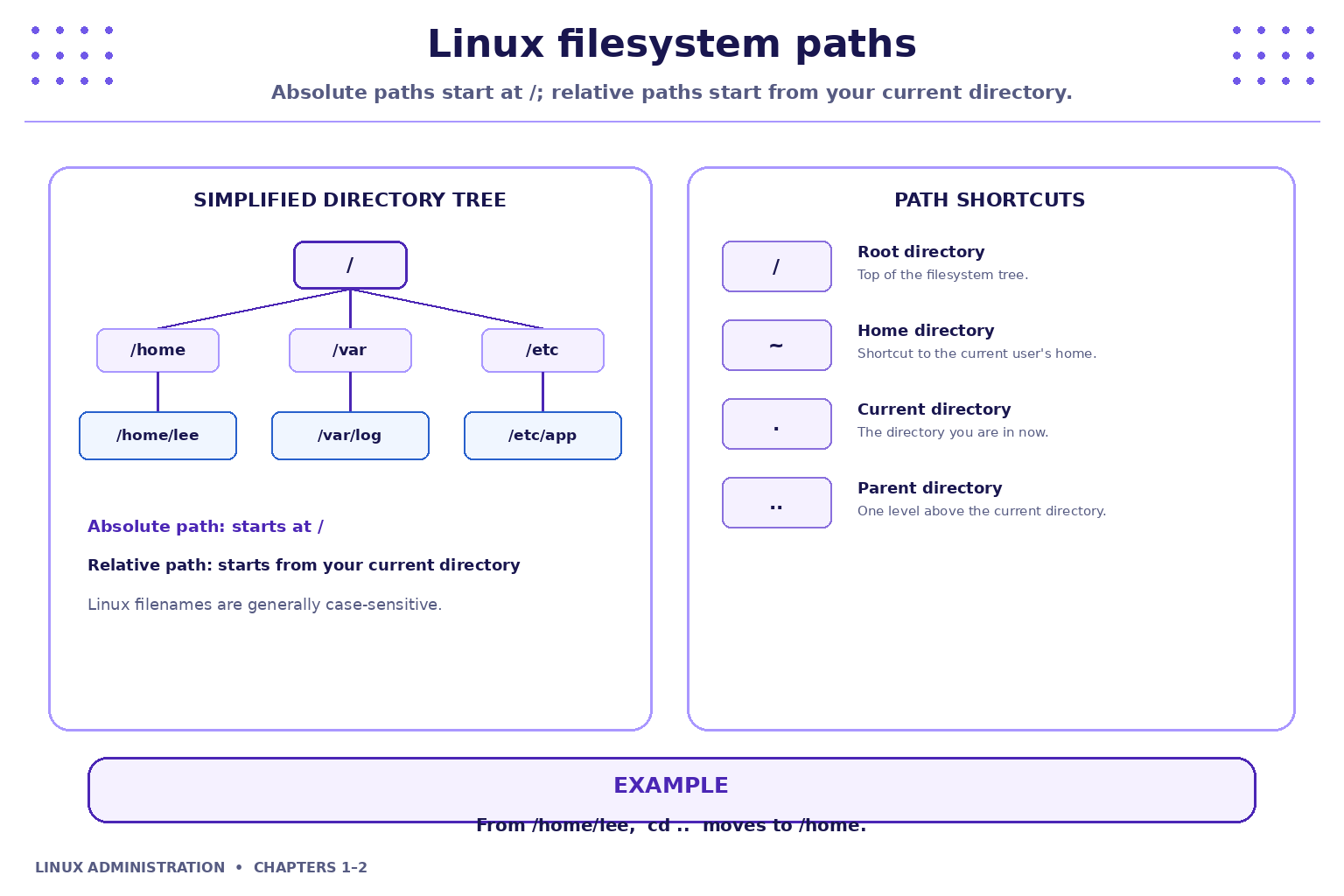
Linux organises files and directories in a tree that begins at the root directory, written as /. The root directory is not the same as the root user's home directory.
A simplified example:
/
└── home
    └── student
        ├── Documents
        ├── projects
        │   └── demo
        └── .bashrc
The exact user name and directory structure depend on the environment.
Important path symbols
| Symbol | Meaning | Example |
|---|---|---|
/ |
Filesystem root | /var/log |
~ |
Current user's home directory in a typical shell | cd ~ |
. |
Current directory | ./script.sh |
.. |
Parent directory | cd .. |
/ between names |
Separates path components | projects/demo |
Absolute paths
An absolute path starts at / and identifies a location independently of the current directory.
Examples:
/home/student/Documents
/var/log
/tmp
Use absolute paths when you need to make the intended location explicit, especially in instructions, runbooks and operational procedures.
Relative paths
A relative path is interpreted from the current working directory.
Suppose the current directory is /home/student:
Documents/notes.txt
projects/demo
../shared
./script.sh
These paths have meaning relative to that starting point. If the current directory changes, the same relative path may refer to a different location or fail.
Filenames: case and spaces
Linux filenames are generally case-sensitive:
Notes.txt
notes.txt
These are different names. A path containing spaces should be quoted:
cd "Project Files"
Quoting preserves the spaces as part of one path argument. Do not remove spaces or change capitalisation without checking the actual name.
3. Find Your Current Location: pwd
pwd means print working directory. It reports the current directory of the shell.
pwd
Example output might be:
/home/student
Your output may differ. The important point is to use the displayed path, not assume a particular starting directory.
When is pwd useful?
- Before using a relative path.
- After changing directories.
- When a script says a file cannot be found.
- When following a runbook written by someone else.
- Before performing any operation that depends on the current location.
Professional habit: when unsure where you are, run pwd first.
4. Inspect Directory Contents: ls
ls lists files and directories.
ls
Common variations:
| Command | Purpose |
|---|---|
ls |
List visible entries |
ls -a |
Include hidden entries |
ls -l |
Show a detailed listing |
ls -la |
Detailed listing including hidden entries |
ls /tmp |
List a specific directory |
ls -R |
Recursively list entries; use only on small practice trees |
Names beginning with a dot, such as .bashrc, are hidden from the default ls listing. They are not necessarily secret or protected; they are simply omitted by default.
In a long listing, you may see file type and permission notation, link count, owner, group, size, modification time and name. Permissions will be covered in a later lecture.
Safe inspection sequence
pwd
ls
ls -la
ls /tmp
Inspect the output before deciding what to do next. Do not assume a directory contains a file just because a tutorial shows it.
5. Navigate with cd
cd means change directory. It is a shell built-in in common shells.
cd /tmp
pwd
The second command verifies the new location.
Useful navigation examples:
cd ~       # go to your home directory
cd ..      # move to the parent directory
cd .       # remain in the current directory
cd -       # return to the previous working directory
cd /tmp    # move to /tmp using an absolute path
cd - switches to the previous working directory and usually prints that path. It is useful when moving between two locations.
If cd reports “No such file or directory,” check the path, spelling, capitalisation and current directory. If you have no permission to enter a directory, do not automatically add sudo; first understand the access restriction and follow the lab or organisation's rules.
6. Create a Safe Practice Directory
For this chapter, keep practice work inside your home directory.
mkdir -p ~/linux-lab/week2/docs
mkdir creates directories. The -p option creates missing parent directories and does not complain if the requested directories already exist.
Now navigate and verify:
cd ~/linux-lab/week2/docs
pwd
ls -la
Move one level up:
cd ..
pwd
ls -la
Return to the previous directory:
cd -
pwd
The exact output depends on where you started. Your evidence is the actual output from your environment.
Safety boundary: this lab does not require sudo, deleting files, changing system directories, or modifying production systems.
7. Find Help Instead of Guessing
Linux commands often provide built-in documentation. Availability differs across distributions and minimal browser shells, so use the method supported by your environment.
--help: quick option summary
ls --help
This commonly prints usage and a summary of options. Output can be long; scan for an option you want to understand, then test it on a safe target such as your practice directory.
man: manual pages
man ls
A manual page provides more detailed reference information. In a typical pager:
- Use the arrow keys or Page Up / Page Down to move.
- Press
qto quit.
Some minimal environments do not include manual pages. If man ls is unavailable, try ls --help or use the environment's documentation.
whatis: one-line description
whatis ls
Where its manual-page database is available, whatis gives a short description. It may return no result on systems without the relevant database.
apropos: search documentation by topic
apropos directory
apropos searches manual-page descriptions for a keyword when the database is available. It is useful when you know the task but not the command name.
A practical help workflow
- Identify the command you are trying to use.
- Read its error or usage message.
- Try
command --helpif supported. - Use
man commandfor detail, when installed. - Search with
apropos keywordif you need to discover a command. - Retry only after understanding the syntax and target.
Example:
ls --help
ls -a ~/linux-lab
The first command helps you understand the option; the second uses it on a safe location.
8. Choose a Free Practice Environment
Use whichever supported environment is already available:
- Webminal: browser-based shell for command practice; sign in only through the official service.
- Ubuntu on WSL2: a practical local terminal option on compatible Windows systems.
- Ubuntu/Debian VM or lab Linux: use a system provided by the institution or installed with permission.
For this lecture, all core exercises use standard commands and do not require a cloud VM. Do not enable paid cloud resources for a basic navigation lab. Never enter personal passwords into example commands or share credentials in screenshots.
9. A Repeatable Operator Workflow
Use the same disciplined sequence whenever a command behaves unexpectedly.
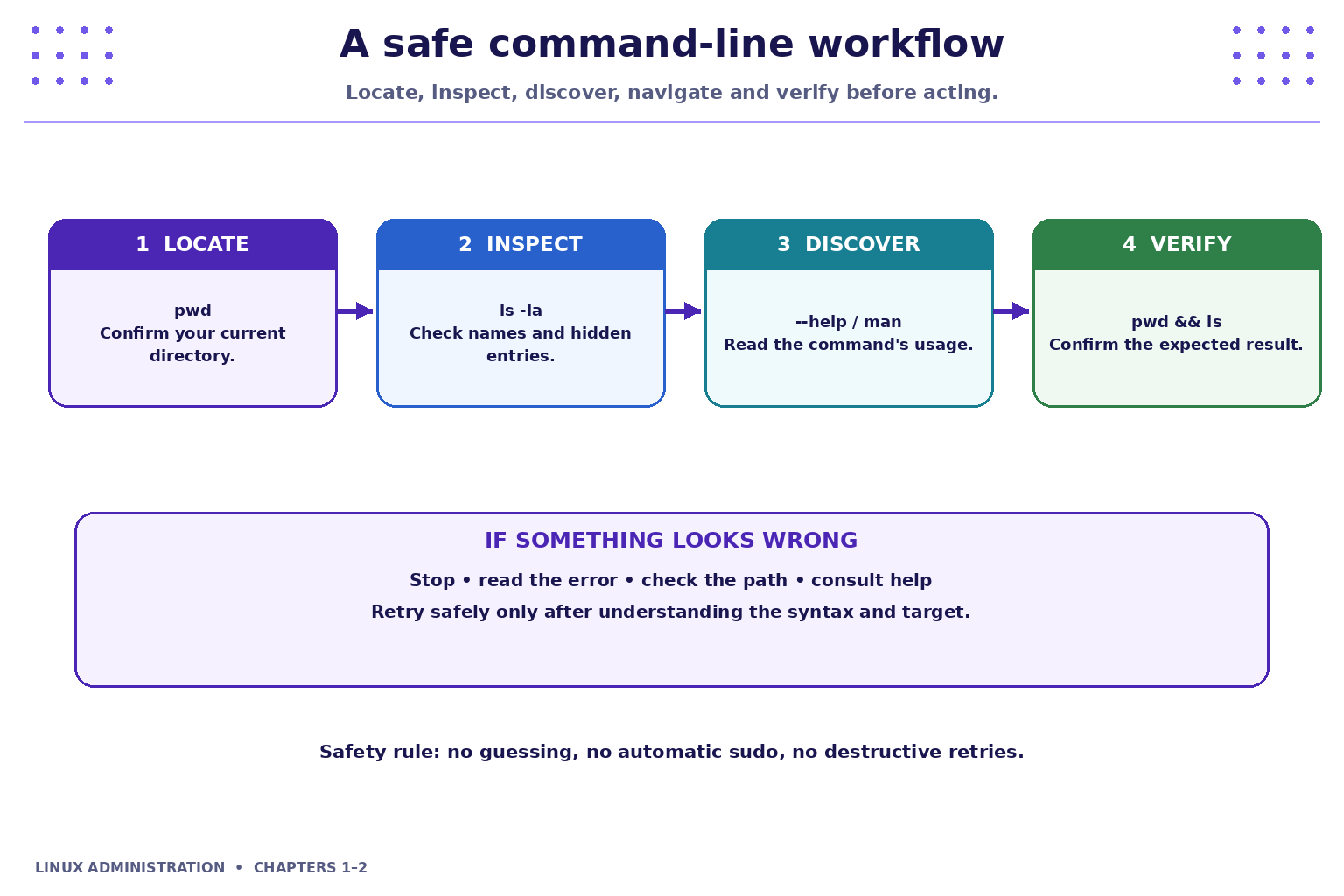
- Locate: run
pwdto establish the starting point. - Inspect: run
lsorls -lato confirm names and entries. - Discover: read the command's help or manual.
- Navigate: use an appropriate absolute or relative path.
- Verify: run
pwdorlsagain to confirm the result.
The goal is not to memorise every command. The goal is to know how to discover valid usage and verify what happened.
10. Industry Scenario: Locate an Application Log Safely
A support engineer receives a ticket: “Please locate the application log so the team can investigate a failed deployment.” The runbook mentions /var/log/myapp, but the engineer is not sure whether that directory exists in the current environment.
A safe investigation begins with inspection:
pwd
ls -la /var/log
ls -la /var/log/myapp
If the final command reports that the path does not exist, do not invent a path or create a production directory. Check the spelling, environment and runbook, then ask the service owner to confirm the correct location.
The engineer should not edit or delete production logs during this exercise.
What to record in a support ticket
- The exact command used.
- The exact path inspected.
- The relevant output or error message.
- The environment where the command ran.
- The next verification step or person consulted.
This creates evidence that another team member can reproduce.
11. Common Errors and How to Respond
“No such file or directory”
Possible causes include a misspelled name, incorrect capitalisation, a missing path component, or a different current directory.
Try:
pwd
ls
ls -la
Then verify each path component.
“Permission denied”
Your user may not be allowed to read or enter the target. Inspect the path and follow the access policy. Do not add sudo automatically or attempt to bypass restrictions.
“Command not found”
The command may be misspelled or unavailable in that environment. Check the spelling and ask whether the utility is expected to be installed. Do not install packages just to complete this introductory navigation lab.
Invalid option or too many arguments
Read the usage message or help output. Simplify the command and verify the syntax before retrying.
Troubleshooting rule
Capture the exact error → inspect location and spelling → consult help → retry safely → record the result.
12. Quick Command Reference
| Command | What it does | Typical use |
|---|---|---|
pwd |
Prints the current directory | Confirm your starting point |
ls |
Lists visible entries | Inspect a directory |
ls -la |
Includes hidden entries and details | Investigate names and metadata |
cd path |
Changes directory | Navigate to a target |
cd .. |
Moves to the parent | Move up one level |
cd ~ |
Moves to the home directory | Return to your workspace |
cd - |
Returns to the previous directory | Switch between two locations |
mkdir -p path |
Creates a directory path | Set up a practice tree |
command --help |
Shows a concise usage summary, if supported | Check options |
man command |
Opens a manual page, if installed | Read detailed reference |
whatis command |
Shows a one-line description, if available | Quick reference |
apropos keyword |
Searches manual descriptions, if available | Discover a command |
Practice Exercises
Complete these tasks in Webminal, WSL2/Ubuntu, a Linux VM, or another authorised shell. Run commands individually and verify the result.
Exercise 1: Establish your location
- Run
pwd. - Run
ls. - Run
ls -la. - Record the current directory and one difference between the last two listings.
Expected evidence: the commands and your actual output.
Exercise 2: Build and navigate the practice tree
Run:
mkdir -p ~/linux-lab/week2/docs
cd ~/linux-lab/week2/docs
pwd
cd ..
pwd
ls -la
Explain how the path changes after cd ...
Exercise 3: Absolute versus relative paths
- Run
cd ~and thenpwd. - Run
cd /tmpand thenpwd. - From
/tmp, runcd ..and thenpwd. - Explain which commands used absolute paths and which used a relative path.
The exact path output may differ by environment.
Exercise 4: Use help to discover an option
- Run
ls --help. - Find the description for the
-aoption. - Run
ls -a ~/linux-lab. - Explain why the second command can show entries that a plain
lsmay omit.
If the help option is unavailable, use the documentation provided by your shell.
Exercise 5: Troubleshoot a deliberate path error
Run this harmless inspection command:
ls ~/linux-lab/folder-that-does-not-exist
Observe the error. Then use pwd and ls -la ~/linux-lab to investigate. Do not create the missing directory just to hide the error.
Write down the cause and the verification steps.
Exercise 6: Operational runbook note
Imagine a teammate asks you to find /var/log/myapp. Write a short note containing:
- The path you were asked to inspect.
- The command used to check it.
- The actual result.
- The next safe action if the path is missing.
Do not claim that the path exists unless your environment confirms it.
Quiz: Command-Line Essentials, Paths, Help and Navigation
Choose the one best answer for each question. Answers and explanations are provided below the questions.
1. Which command prints the current working directory?
A. ls
B. pwd
C. cd
D. man
2. Which of these is an absolute path?
A. docs/file.txt
B. ../notes
C. /home/student/docs
D. ./report
3. What does cd .. do?
A. Moves to the home directory
B. Lists hidden files
C. Moves to the parent directory
D. Opens the command manual
4. Which command commonly displays a concise option summary for ls?
A. ls --help
B. pwd --home
C. cd --manual
D. mkdir --where
5. Which option includes hidden entries in a typical ls listing?
A. -r
B. -a
C. -p
D. -x
6. A command reports “No such file or directory.” What is the best first response?
A. Add sudo immediately
B. Reboot the machine
C. Delete the directory
D. Check pwd, spelling, capitalisation and the path
Quiz Answer Key and Explanations
- B —
pwd. It prints the shell's current working directory. - C —
/home/student/docs. The leading/means the path starts at the filesystem root. - C — Moves to the parent directory. The special path
..represents the parent of the current directory. - A —
ls --help. It commonly prints usage and supported options; exact output varies by utility and environment. - B —
-a. It includes hidden entries, including names beginning with a dot. - D — Check
pwd, spelling, capitalisation and the path. Establish facts before retrying;sudoand rebooting do not fix an incorrect path.
Key Takeaways
- Read commands as a utility followed by optional options and arguments.
- Linux paths are case-sensitive, and relative paths depend on the current directory.
- Use
pwdto locate yourself,lsto inspect andcdto navigate. - Use
--help,man,whatisandaproposwhere available instead of guessing. - Read errors carefully and verify each step.
- Practise only in an authorised, safe environment; this lecture requires no privileged commands.
Chapter Summary
In this chapter, you learned command-line structure, filesystem paths, absolute and relative navigation, directory inspection, built-in help tools and a repeatable troubleshooting workflow. You also practised building a safe directory tree and responding to a missing-path error.
These habits form the foundation for the next topic: working with files, text processing, pipes and redirection.
Next Chapter
Chapter 3: Files, Text Processing, Pipes and Redirection