
Chapter 7: Storage, Filesystems, Mounts, and Disk Usage
Learn how Linux organises files into one directory tree, how filesystems are attached through mount points, and how to inspect disk capacity and directory usage safely. The practical work uses read-only commands and avoids risky disk operations.
Lab environment: Ubuntu on WSL 2, an Ubuntu virtual machine, or an approved browser terminal. Storage layout varies between physical Linux, virtual machines, containers, and WSL2. Do not partition, format, mount, unmount, or delete system data during these exercises.
Learning objectives
By the end of this chapter, you should be able to:
- Explain the Linux directory tree and the role of mount points.
- Distinguish filesystem capacity from directory-level usage.
- Inspect filesystem space using
df. - Estimate directory usage using
du. - Inspect paths, directory entries, and mount information.
- Explain why
dfandducan report different values. - Follow a safe evidence-first approach when a disk appears full.
1. Industry scenario: a filesystem is almost full
A team reports that an application cannot save files. An administrator sees that a filesystem has little available space. The safe response is not to delete large files immediately. First identify which filesystem is affected, investigate which directories use space, determine who owns the data, and follow an approved cleanup or capacity plan.
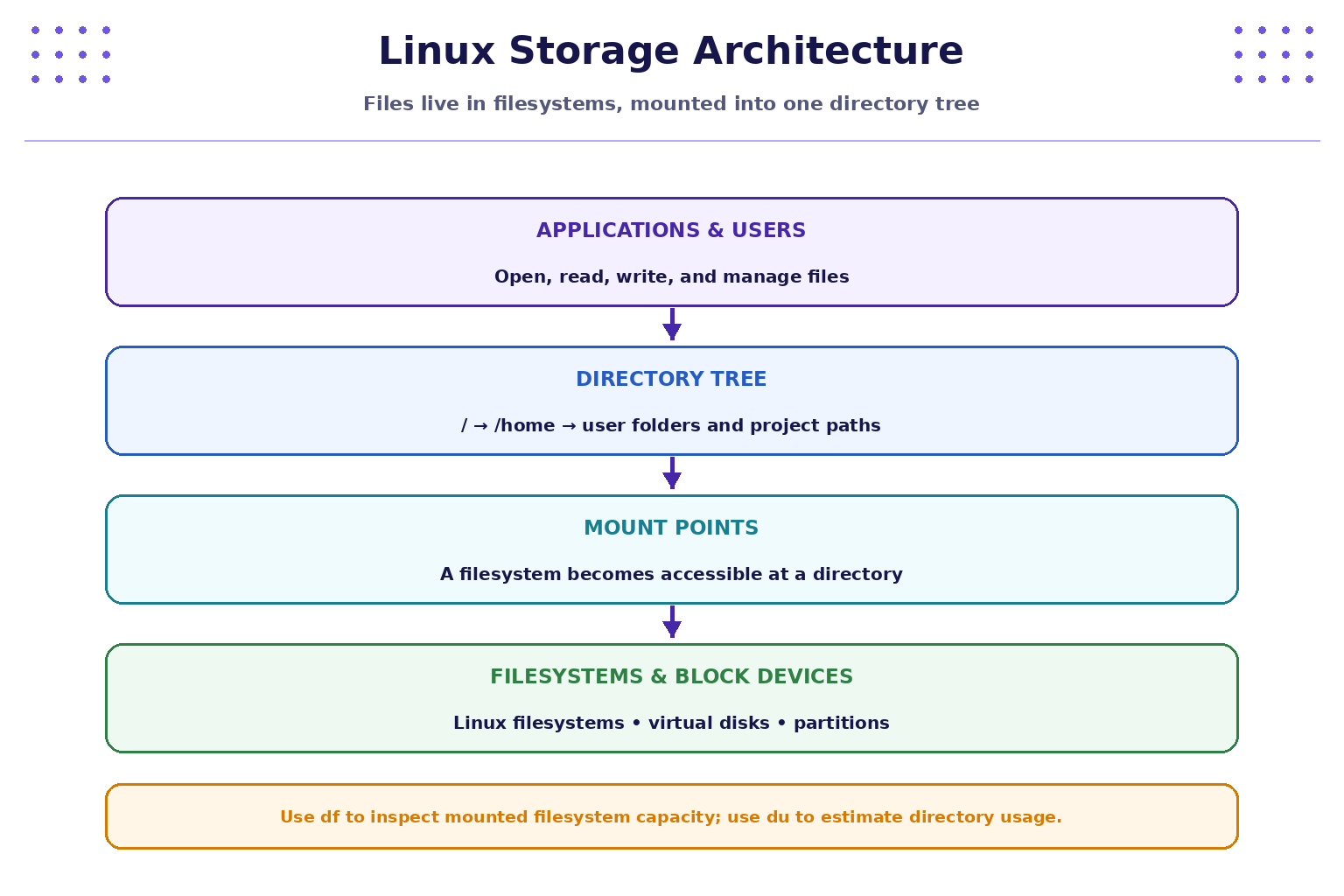
Linux presents files through a single directory tree rooted at /. Different filesystems can be attached at directory paths called mount points. A path such as /home/student/project may reside on the root filesystem or on a separate mounted filesystem, depending on the machine's configuration.
2. Quick reference: storage and filesystem commands
| Command | Brief description | Common options / notes | Simple examples |
|---|---|---|---|
pwd |
Print the current working directory. | -P prints a physical path on common shells. |
pwd |
ls -l |
List entries with details. | -a includes hidden entries; -h human-readable sizes. |
ls -lah |
ls -ld PATH |
Show details for the path itself. | Useful for inspecting a directory without listing its contents. | ls -ld /home |
df |
Report filesystem space usage. | -h human-readable; -T shows type on common systems. |
df -h |
du |
Estimate file or directory space usage. | -s summary; -h human-readable. |
du -sh ~/linux-lab |
du -ah DIR |
Estimate usage for entries below a directory. | Output can be large; use only on a directory you are allowed to inspect. | du -ah ~/linux-lab |
findmnt |
Display mounted filesystems and mount points. | Options vary by version. | findmnt |
mount |
Display mounted filesystems when run without arguments on many systems. | Mounting/unmounting changes system state; avoid those operations in this lab. | mount |
lsblk |
List block devices and their relationships. | May be unavailable in browser terminals or WSL. | lsblk |
stat PATH |
Display metadata for a file or directory. | Does not report all filesystem-level usage. | stat ~/linux-lab |
file PATH |
Identify a file's type from its contents. | It does not identify the filesystem containing it. | file notes.txt |
readlink -f PATH |
Resolve a path to an absolute path where supported. | Symlink and platform behaviour can vary. | readlink -f ~/linux-lab |
head |
Display the first lines of output. | -n N selects a line count. |
df -h | head |
man COMMAND |
Read command documentation. | -k searches descriptions. |
man df · man du |
Safety note: df, du, findmnt, lsblk, and mount without arguments are generally inspection commands. Options that mount, unmount, repartition, format, or modify storage are outside this chapter's practical scope.
3. Understand the Linux directory tree
Linux uses a single directory hierarchy beginning at /. Common directories include:
/home— home directories for ordinary users on many systems./etc— system and application configuration./var— variable data, often including logs, caches, queues, and service data./tmp— temporary files, subject to local cleanup policies./usr— many user-space programs, libraries, and shared data./mnt— commonly used as a mount location, including in some WSL workflows./media— often used for removable-media mount points on desktop systems.
These are common conventions, not a guarantee that every directory resides on a separate filesystem. Some directories may be symlinks or bind mounts, and container/WSL layouts can differ.
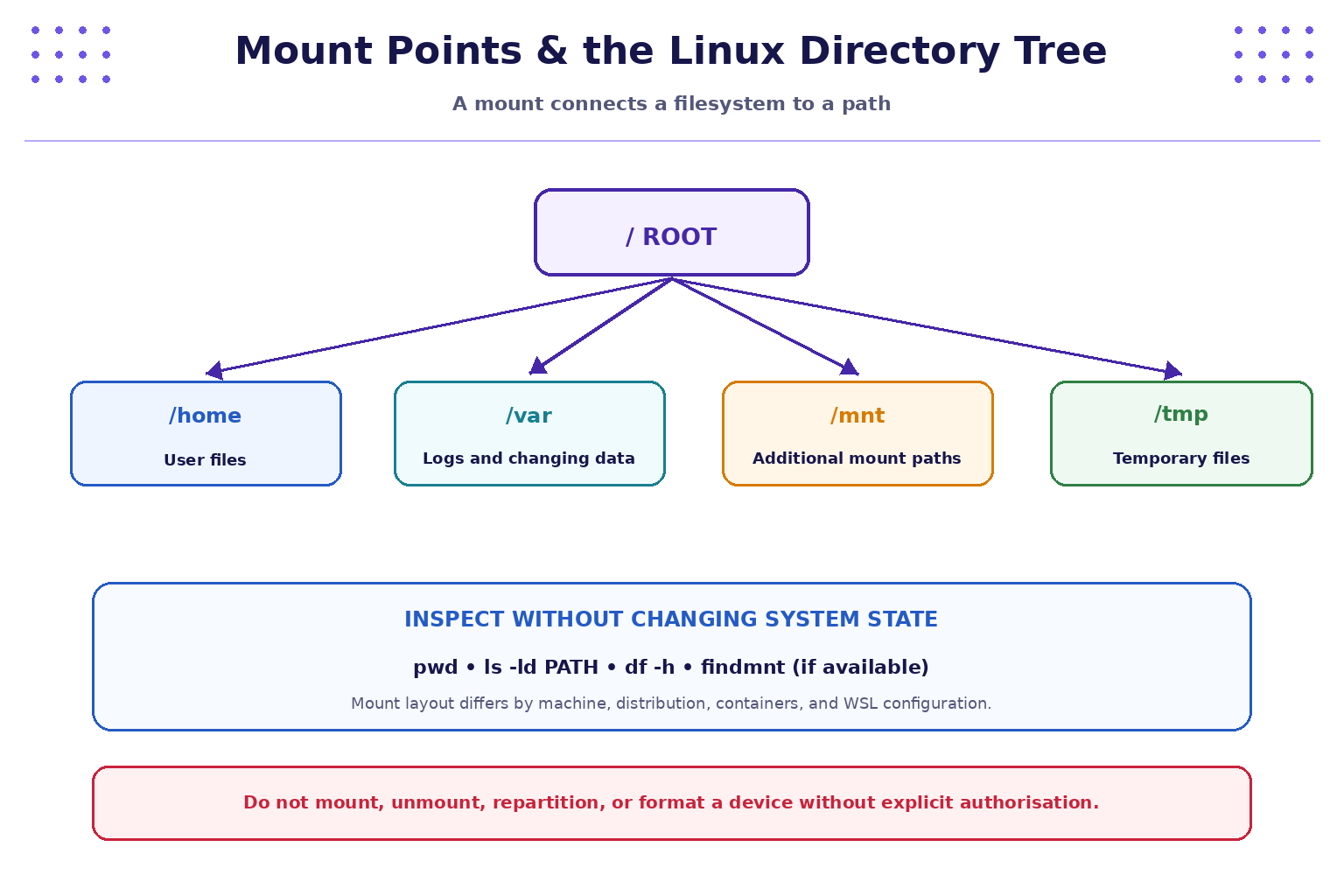
A mount point is a directory through which a mounted filesystem is accessed. The filesystem that provides the data may be a disk partition, a virtual disk, a network filesystem, or another supported storage source.
4. Filesystem capacity vs directory usage
Use:
df -h
df reports capacity and usage for mounted filesystems visible to the environment. Pay attention to the filesystem, size, used space, available space, percentage used, and mount point.
To inspect a directory you own:
mkdir -p ~/linux-lab/storage
cd ~/linux-lab/storage
printf 'storage practice\n' > notes.txt
df -h .
du -sh .
du -ah .
df -h .reports the filesystem containing the current directory.du -sh .estimates the total space used under the current directory.du -ah .shows estimates for entries beneath it and can produce more output.
Do not run broad du searches across the entire root filesystem in a restricted or shared terminal. Use a lab directory or a path you have permission to inspect.
5. Practical lab A — inspect your filesystem
Run:
whoami
pwd
df -h
df -h .
Record:
- Your current working directory.
- The filesystem and mount point associated with that directory, if shown.
- The available capacity reported for that filesystem.
- Whether
df -hlists more than one filesystem. - One reason that another student's output may differ from yours.
The output depends on your environment, virtual disk size, mounted filesystems, and operating system.
6. Practical lab B — measure a practice directory
Create a small practice area:
mkdir -p ~/linux-lab/storage
cd ~/linux-lab/storage
printf 'first sample\n' > one.txt
printf 'second sample with a little more text\n' > two.txt
mkdir -p reports
printf 'report sample\n' > reports/report.txt
ls -lah
du -sh .
du -ah .
Answer:
- Which command listed the files?
- Which command gave a summary of directory usage?
- Which command showed entries individually?
- Why can the total shown by
dube different from the filesystem's total used space shown bydf? - Why should you avoid interpreting rounded human-readable sizes as exact byte counts?
7. Practical lab C — inspect mount points safely
Try the following read-only commands where available:
findmnt
mount
lsblk
If one command is missing, record that fact and continue with the others. Some browser terminals and WSL environments expose a simplified storage view.
Complete this table:
| Observation | Your notes |
|---|---|
| One filesystem or mount point you observed | |
| The path where it is mounted | |
| One filesystem/device detail shown | |
| Which command supplied that information? | |
| One limitation of your environment |
Do not run commands to mount or unmount devices, edit /etc/fstab, create partitions, or format filesystems as part of this exercise.
8. Why df and du may differ

df and du answer different questions:
dfreports space usage from the filesystem's perspective.duestimates space used by files and directories it can traverse.
Results may differ because of mount boundaries, permissions, hard links, filesystem metadata, sparse files, rounding, or files that have been deleted from a directory but remain open by a running process. Container and WSL storage layers can add further complexity.
When investigating a full disk:
- Identify the affected mount using
df -h. - Inspect approved candidate directories with
du. - Check ownership and purpose before proposing cleanup.
- Preserve logs, evidence, backups, and application data.
- Obtain approval for any deletion, expansion, or storage change.
- Verify capacity and application behaviour afterwards.
9. Practical lab D — mini disk-usage investigation
Scenario: A fictional application cannot write a report because the filesystem is nearly full. You are allowed to inspect your own lab machine but are not authorised to delete files.
Run:
date
df -h
du -sh ~/linux-lab
ls -lah ~/linux-lab
If your practice directory is elsewhere, use the directory you created for this chapter.
Complete the worksheet:
| Field | Your notes |
|---|---|
| Symptom | |
| Time of observation | |
| Filesystem/mount point with concern | |
| Available space and usage percentage | |
| Practice directory size | |
| What the evidence supports | |
| What remains unknown | |
| Safe next step or escalation |
Do not delete files during the exercise. The goal is to collect evidence and recommend a safe next step.
10. Troubleshooting and safe practice
df -houtput is long: usedf -h .to focus on the filesystem containing the current directory.dusays permission denied: inspect only directories you are authorised to access; do not use elevated privileges to bypass the restriction.findmntorlsblkis unavailable: use the commands supported by your environment and record the limitation.dfsays a filesystem is full butdudoes not show a large directory: consider deleted-but-open files, mount boundaries, permissions, filesystem metadata, and container/WSL storage layers; escalate rather than guessing.- A path is a symlink: use
ls -l PATHorreadlink -f PATHwhere supported to understand the path. - A large file is found: do not delete it simply because it is large. Confirm owner, purpose, retention requirements, and approval.
- WSL storage seems different from Windows free space: WSL distributions may use virtual disks and host storage. Investigate the specific environment rather than assuming the reported capacities should match exactly.
Safety rule: Observe and document first. Never format, repartition, mount/unmount, edit mount configuration, or delete logs and application files without explicit authorisation.
11. Quick command recap
| Task | Command |
|---|---|
| Current directory | pwd |
| Inspect directory entries | ls -lah |
| Inspect a directory itself | ls -ld PATH |
| Filesystem capacity | df -h |
| Filesystem containing current directory | df -h . |
| Summary of directory usage | du -sh DIR |
| Detailed directory usage | du -ah DIR |
| Show mount information | findmnt |
| Show mounted filesystems | mount |
| Show block-device layout (if available) | lsblk |
| Read command documentation | man df · man du |
12. Knowledge check — MCQs
1. What is the Linux directory hierarchy rooted at?
A. C:\
B. /
C. /home/root-only
D. PID 1
2. What does df -h report?
A. Filesystem capacity and usage in human-readable units
B. Only the size of one text file
C. User group membership
D. Running processes
3. What does du -sh DIR estimate?
A. Total RAM available
B. Summary of space used under a directory
C. Number of running services
D. Filesystem mount permissions only
4. What is a mount point?
A. A process ID
B. A directory through which a filesystem is accessed
C. A package repository
D. A Linux user group
5. Why can df and du show different values?
A. They measure different things and may be affected by filesystem behaviour and access limits
B. One always gives a false result
C. They only work on Windows
D. They both list usernames
6. What should you do first when a disk appears full?
A. Delete the largest file immediately
B. Format the filesystem
C. Identify the affected mount and inspect usage safely
D. Disable logging
Answers and explanations
- B —
/is the root of the Linux directory hierarchy. - A —
df -hreports filesystem-level capacity and usage. - B —
du -shgives a summary estimate for a directory tree. - B — a mount point is a path at which a filesystem is made accessible.
- A — filesystem accounting, mount boundaries, permissions, and deleted-but-open files can affect results.
- C — establish the scope and gather evidence before planning an approved action.
Key takeaways
- Linux presents files through one directory tree rooted at
/. - Mount points connect filesystems to paths in that tree.
dfmeasures filesystem-level usage;duestimates directory-level usage.- Storage layout differs across physical Linux, VMs, containers, and WSL2.
- Investigate the mount, path, ownership, and purpose before proposing cleanup.
- Preserve data and follow approved procedures for all storage changes.
Next chapter
Chapter 8: Networking Fundamentals and Network Configuration — learn to inspect interfaces, IP addresses, routes, DNS resolution, and connectivity using safe diagnostic commands.