
Chapter 03: Repositories, Cloning and Remote Synchronisation
Practical focus: Connect local work to a shared GitHub repository.
Learning objectives
By the end of this chapter, you should be able to:
- Create or clone a repository.
- Explain fetch, pull and push.
- Use
.gitignoreand keep secrets out of version control.
1. Why this topic matters
A local repository stores work on your machine; a remote repository enables sharing and collaboration. Pull, fetch and push have different purposes.

2. Core concepts
Create or clone
Create a repository on GitHub or clone an existing repository. Cloning downloads the repository and its history into a local directory.
Remote operations
git fetch updates remote-tracking information without automatically integrating it into your current branch. git pull fetches and integrates changes according to the configured strategy. git push publishes local commits to a remote when permissions and branch rules allow.

3. Practical model
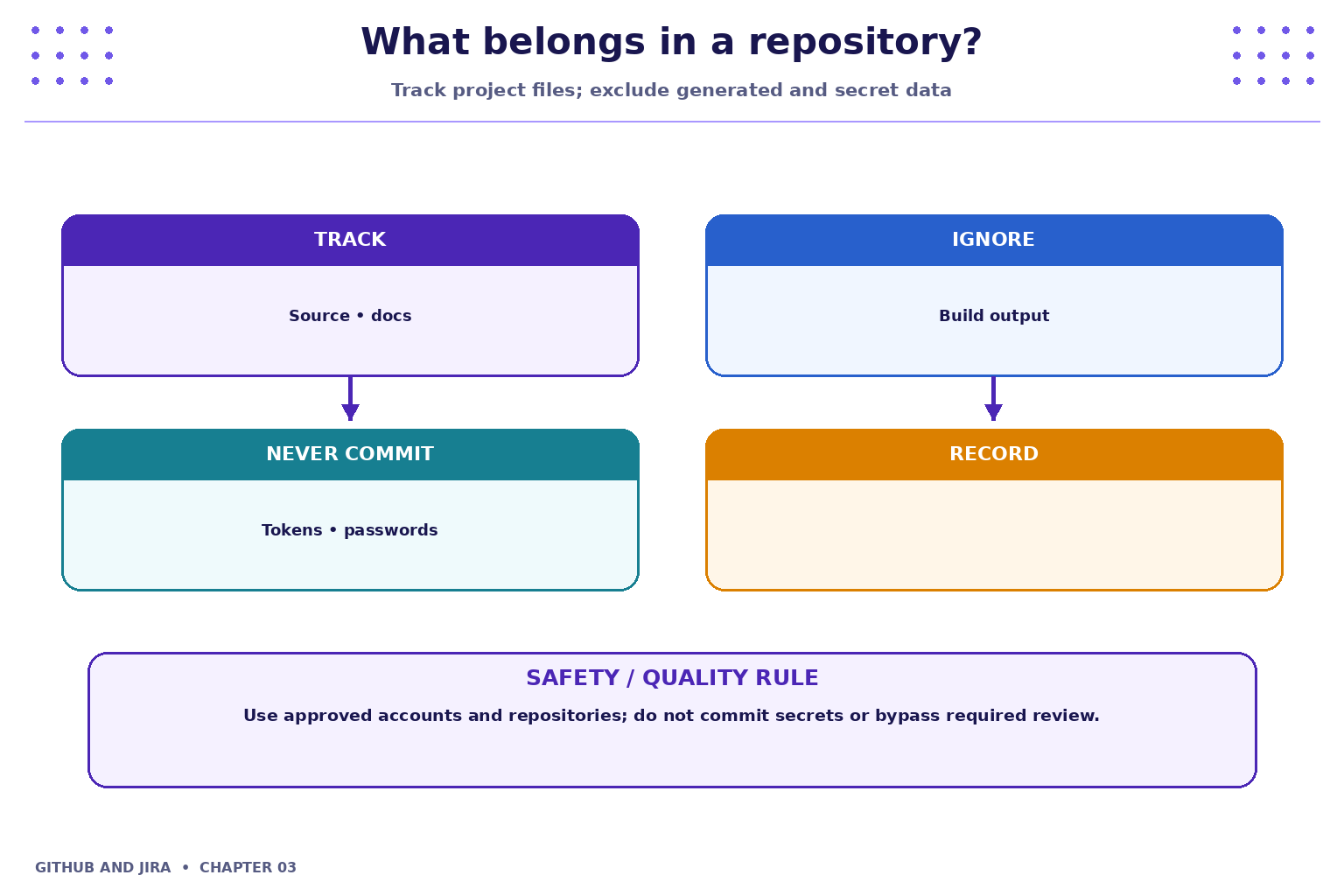
A .gitignore file lists patterns for files Git should ignore, such as generated build output, local environment files and editor artifacts. Ignoring a file does not remove it from history if it was already tracked. Secrets should never be committed in the first place.
4. Industry scenario
Scenario: a team is delivering a small feature for a fictional Student Task Tracker. A local repository stores work on your machine; a remote repository enables sharing and collaboration. Pull, fetch and push have different purposes.
5. Hands-on lab
Use only your own practice repository and the approved Jira project. Do not use production code, credentials or personal data.
- Create an empty GitHub repository or use an instructor-provided one; clone it locally.
- Add a README, commit it and push the commit to the remote.
- Create a
.gitignoreappropriate for the sample project and verifygit status.
Lab evidence to record
- What you changed or inspected.
- The command or UI action used.
- What you observed and how you verified it.
- Any limitation, blocker or follow-up action.
6. Command and action reference
| Command / action | Purpose / safe note |
|---|---|
git clone <repository-url> |
Copy a remote repository locally |
git remote -v |
List configured remotes |
git fetch |
Update remote-tracking references |
git pull |
Fetch and integrate remote changes |
git push |
Publish local commits |
git status |
Inspect local changes |
Safety note: Command-line examples are illustrative. Replace placeholders with values from your own approved practice environment. Do not paste tokens, passwords, private keys or confidential data into commits, tickets or screenshots.
7. Common mistakes and troubleshooting
- Wrong repository or project: verify the repository URL, current directory, project name and work-item key before changing anything.
- Permission denied / action unavailable: check account access and project or repository permissions; request the appropriate access rather than sharing credentials or bypassing controls.
- Unexpected Git state: stop and inspect
git status, the diff and recent history before trying another command. - Missing integration activity: verify configuration, permissions, repository connection and the team's linking convention; do not assume the integration supports every event.
8. Quick-fire knowledge check
1. Which command publishes local commits?
Show answer
git push2. Does fetch automatically merge changes into the current branch?
Show answer
No3. What is .gitignore for?
Show answer
Patterns for files Git should ignoreKey takeaways
- A local repository stores work on your machine; a remote repository enables sharing and collaboration. Pull, fetch and push have different purposes.
- Keep changes small, status accurate and evidence easy for teammates to inspect.
- Follow approved access, review and security policies.
Practice extension
Ask a teammate to review your work or inspect a sample project. Identify one improvement to clarity, traceability, test evidence or workflow consistency.
Next chapter
Chapter 4 — Commits, History and Change Inspection