
Chapter 13: Linking GitHub Development Activity with Jira
Practical focus: Connect the why of a change to the code that delivers it.
Learning objectives
By the end of this chapter, you should be able to:
- Explain GitHub–Jira traceability.
- Follow approved issue-key conventions.
- Verify integration links and permissions.
1. Why this topic matters
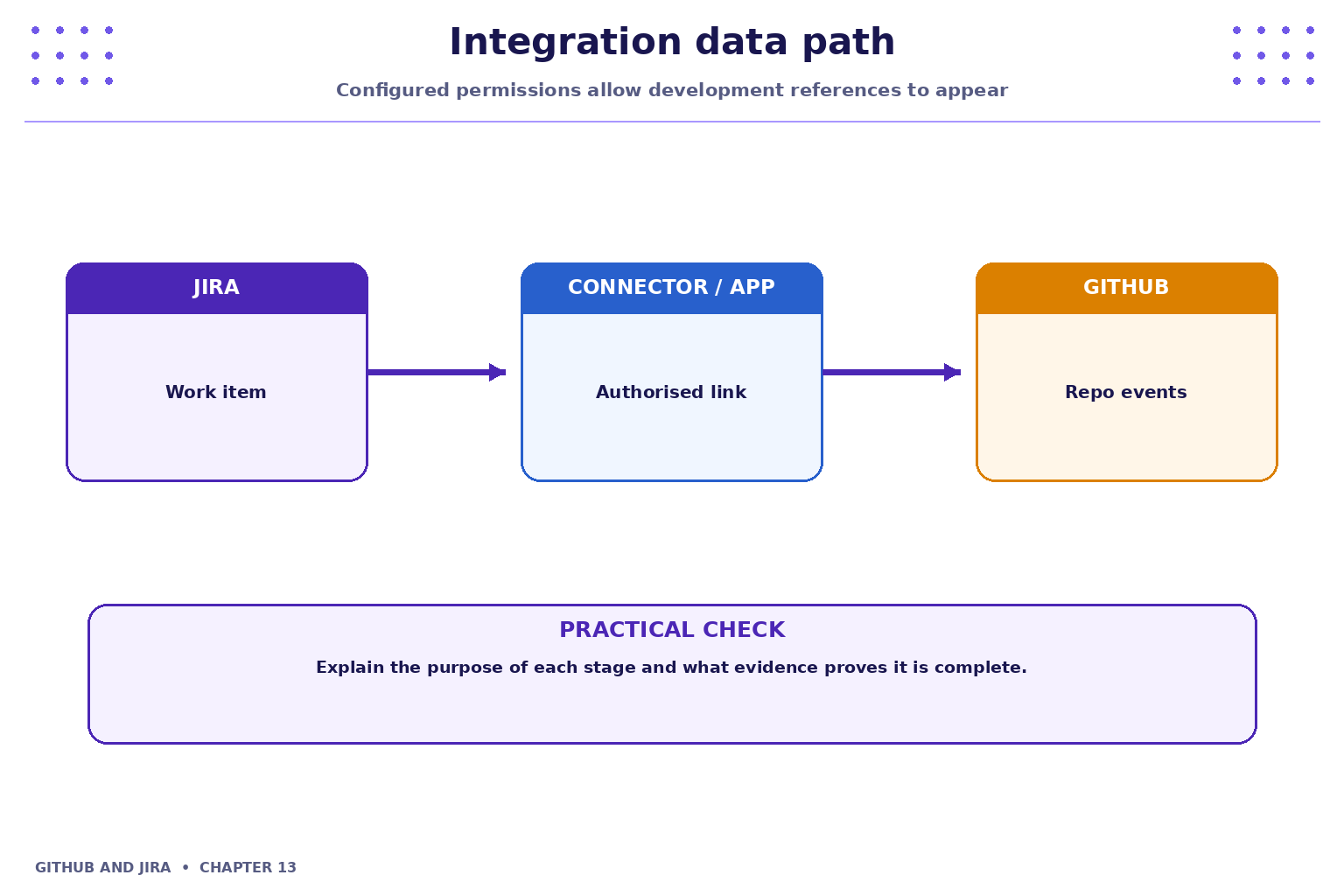
An integration can display development activity against a Jira work item. Setup and available signals depend on permissions, product configuration and the integration method.

2. Core concepts
Before connecting
Use the approved integration or connector configured by the project administrator. Confirm which organisation, repository and Jira project are in scope, and review requested permissions before authorising access.
Linking conventions
Teams may use a Jira issue key in branch names, commit messages or pull-request titles to help associate development activity with a work item. Follow the convention documented for your project.
3. Practical model
A linked key does not prove that every integration event is visible. Confirm the repository is connected, the correct issue key is used, permissions are sufficient and the integration supports the activity being checked.

4. Industry scenario
Scenario: a team is delivering a small feature for a fictional Student Task Tracker. An integration can display development activity against a Jira work item. Setup and available signals depend on permissions, product configuration and the integration method.
5. Hands-on lab
Use only your own practice repository and the approved Jira project. Do not use production code, credentials or personal data.
- Choose an existing Jira work item and note its key.
- Create a branch that follows the project's issue-key convention; make a small change and commit it.
- Push the branch and open a pull request. Inspect the Jira work item for development links if the integration is configured; record limitations if it is not.
Lab evidence to record
- What you changed or inspected.
- The command or UI action used.
- What you observed and how you verified it.
- Any limitation, blocker or follow-up action.
6. Command and action reference
| Command / action | Purpose / safe note |
|---|---|
git switch -c <branch> |
Create a branch using the agreed naming convention |
git commit -m "PROJ-123: describe change" |
Example only: replace PROJ-123 with the real work-item key |
git push -u origin <branch> |
Publish the branch |
Pull request title |
Include the relevant issue key if team convention requires it |
Safety note: Command-line examples are illustrative. Replace placeholders with values from your own approved practice environment. Do not paste tokens, passwords, private keys or confidential data into commits, tickets or screenshots.
7. Common mistakes and troubleshooting
- Wrong repository or project: verify the repository URL, current directory, project name and work-item key before changing anything.
- Permission denied / action unavailable: check account access and project or repository permissions; request the appropriate access rather than sharing credentials or bypassing controls.
- Unexpected Git state: stop and inspect
git status, the diff and recent history before trying another command. - Missing integration activity: verify configuration, permissions, repository connection and the team's linking convention; do not assume the integration supports every event.
8. Quick-fire knowledge check
1. What should you verify before authorising an integration?
Show answer
Scope, requested permissions and approved project/repository2. Does an issue key alone guarantee activity will appear?
Show answer
No, integration and permissions must support it3. Why link code to a work item?
Show answer
To improve context and traceabilityKey takeaways
- An integration can display development activity against a Jira work item. Setup and available signals depend on permissions, product configuration and the integration method.
- Keep changes small, status accurate and evidence easy for teammates to inspect.
- Follow approved access, review and security policies.
Practice extension
Ask a teammate to review your work or inspect a sample project. Identify one improvement to clarity, traceability, test evidence or workflow consistency.
Next chapter
Chapter 14 — Releases, Automation and Repository Security